Share Results for a Job
 Updated
by
Amy Thomas
Updated
by
Amy Thomas
In the Criteria Platform, you can automatically share results for a job with other members of your hiring team.
Note: If you would like to share the results for a job with a co-worker who is not a user yet, you can invite them to join your Criteria account.
Sharing a job
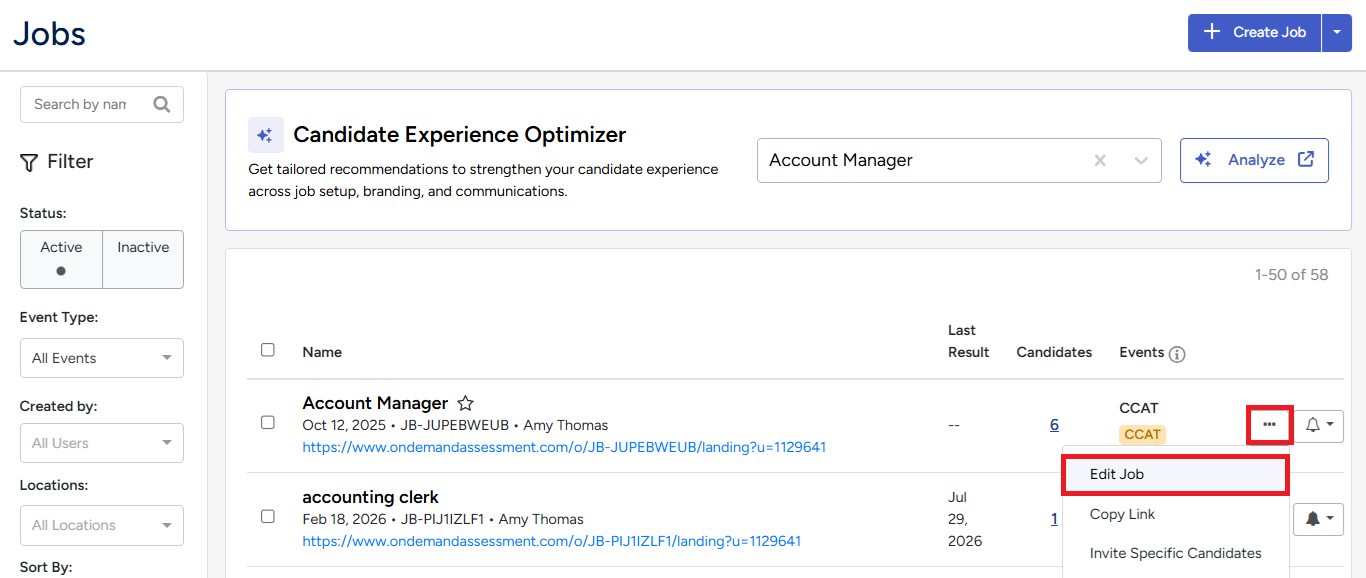
- On the Jobs page, click .. to the right of the job and select Edit Job.
- The location for the job sharing option will depend on the version of job settings used for the job.
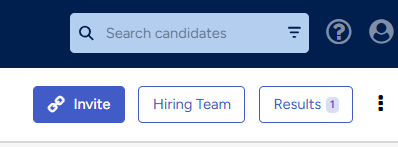
- Candidate Journey Builder: Click Hiring Team in the top right.
- Classic Job Settings: Scroll down to the Candidate Management section and click Edit next to Sharing.

- Candidate Journey Builder: Click Hiring Team in the top right.
- Search for and select a user or team to share the job with. These users will be able to view the results in the Criteria Platform and will receive score reports in their emails whenever a candidate completes the tests.
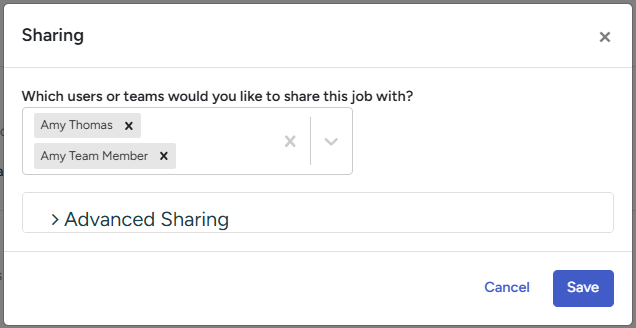
- Optional: Click Advanced Sharing to adjust the following parameters:
- Who can edit the job? By default, anyone with access to the job can edit the job, but you may want to restrict this to specific users and teams, or to the person who created the job.
- Who can administer tests for this job? By default, anyone with access to the job can invite candidates to complete assessments and interviews, but you may want to restrict this to specific users and teams, or to the person who created the job.
- Who can view results for this job? By default, anyone with access to the job can view your candidates' results, but you may want to restrict this to specific users and teams, or to the person who created the job.
- Click Save.
Note: Users with admin user access can view all jobs and all candidates, even if they have been set to private. If you do not want a particular user to be able to view certain jobs or candidates, their access role will need to be set to manager, user, collaborator or a custom role. (The custom role may have all options toggled on, however the user will only see the jobs you share with them.)
Sharing multiple jobs
Admin users can share multiple jobs with users in the Users section.
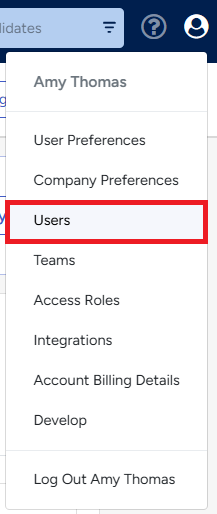
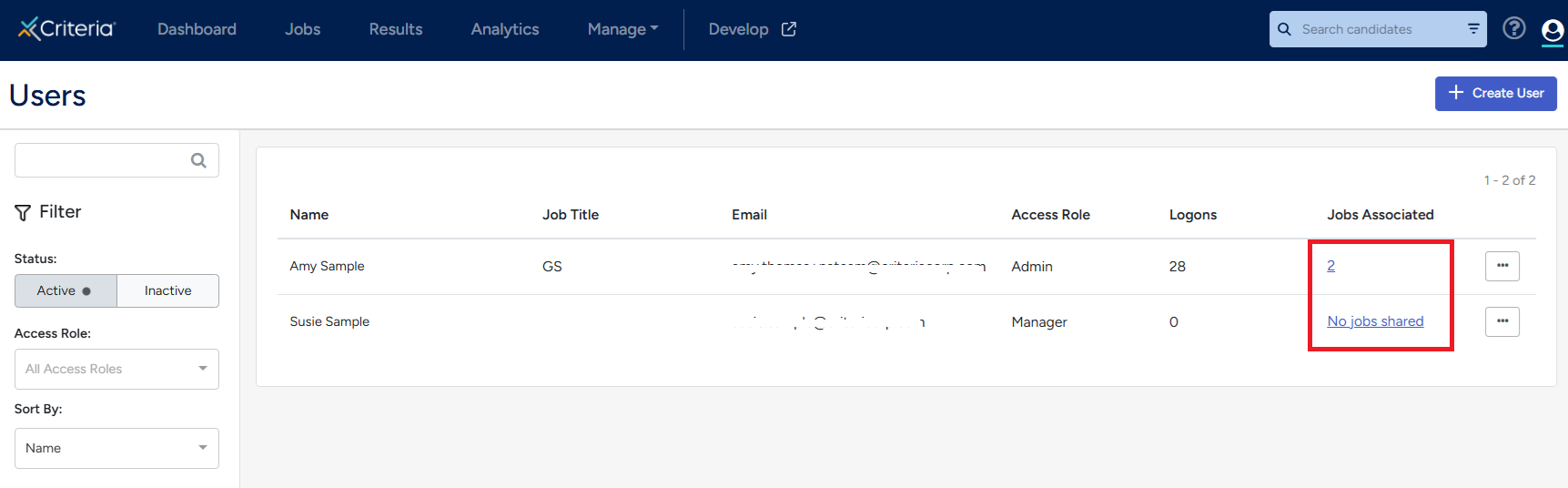
- Click the avatar in the top right corner and select Users.
- Click the number or No jobs shared link for the user in the Jobs Associated column.
- Select which jobs to share with the user. You can select to
- Share all jobs
- Share specific jobs
- Give the user access to the same jobs as another user
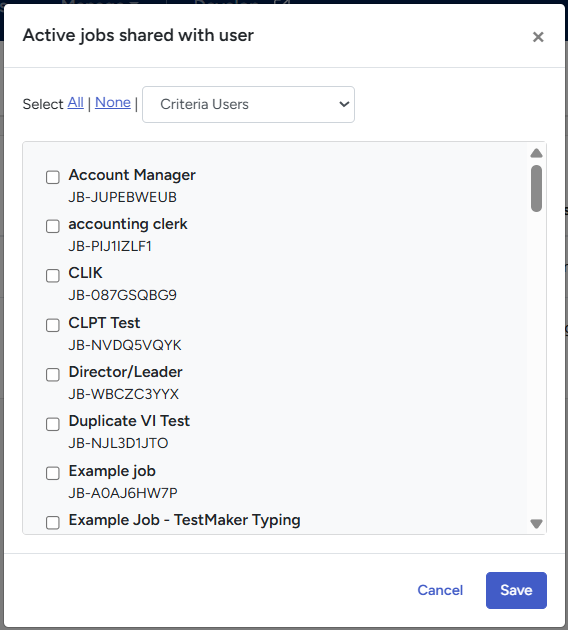
- Click Save.
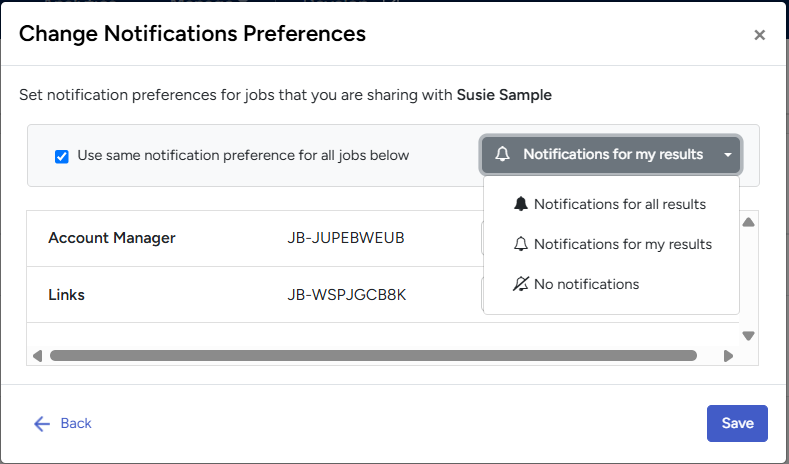
- Set the Notification Preferences for the jobs shared with the user. Either:
- Tick the Use same notification preference for all jobs below box and select the option for all jobs shared with the user, or
- Select the notification preferences by job.
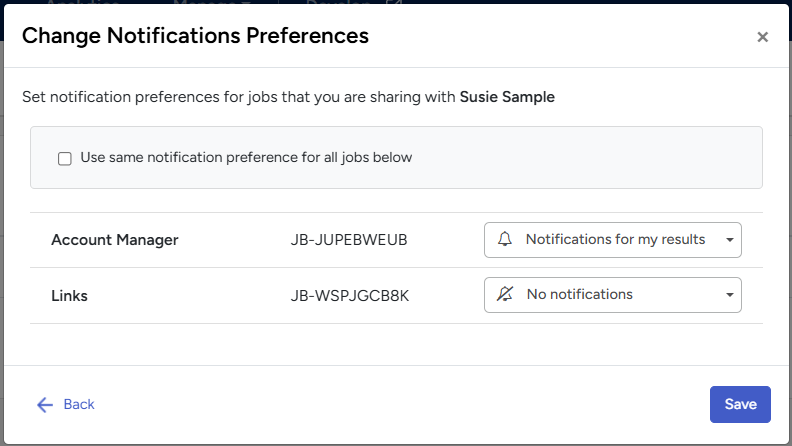
- Tick the Use same notification preference for all jobs below box and select the option for all jobs shared with the user, or
- Click Save.
