Creating a Video Interview Template
 Updated
by
Amy Thomas
Updated
by
Amy Thomas
The video interview template contains all the questions that you want to ask your candidate in the interview. It may also include messages for your candidate.
Create the video interview template
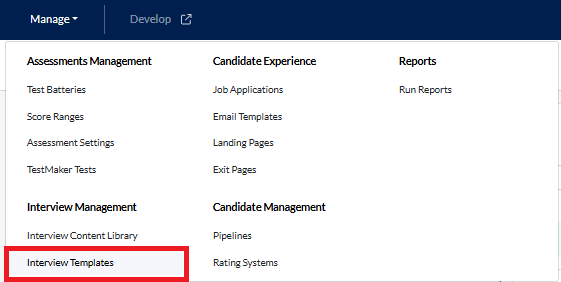
- In your Criteria account, click Interview Templates from the dropdown menu on the Manage tab.
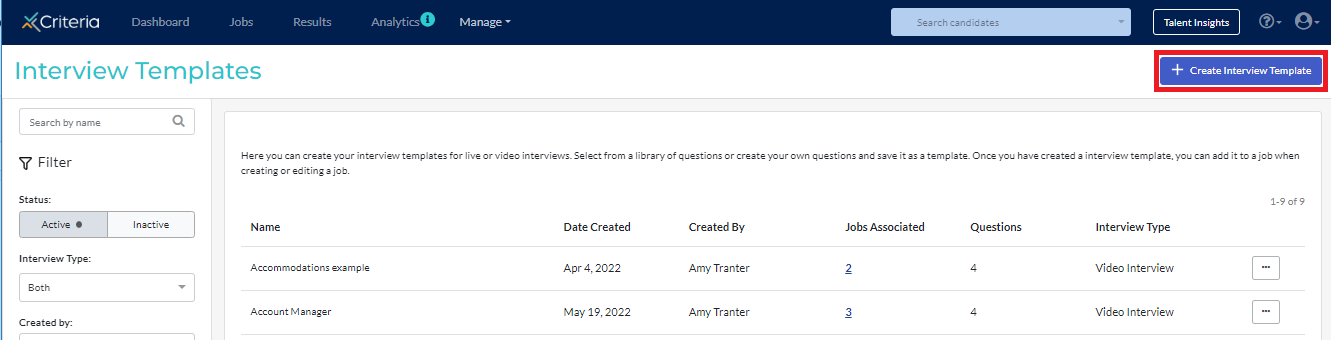
- Click Create Interview Template in the top right corner.
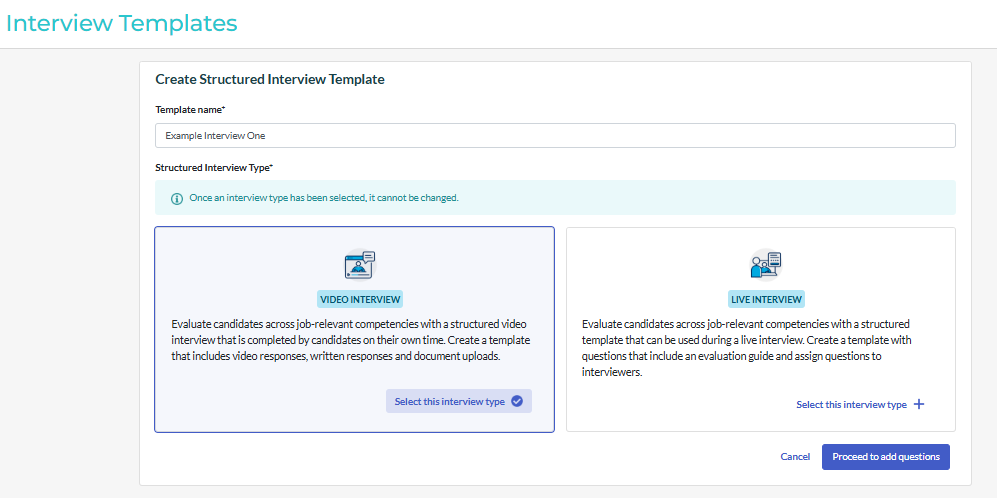
- Give the template a title and select Video Interview. Click Proceed to add questions.
Add content to the template
Add the interview questions your candidates will respond to and any messages you want to present to your candidates.
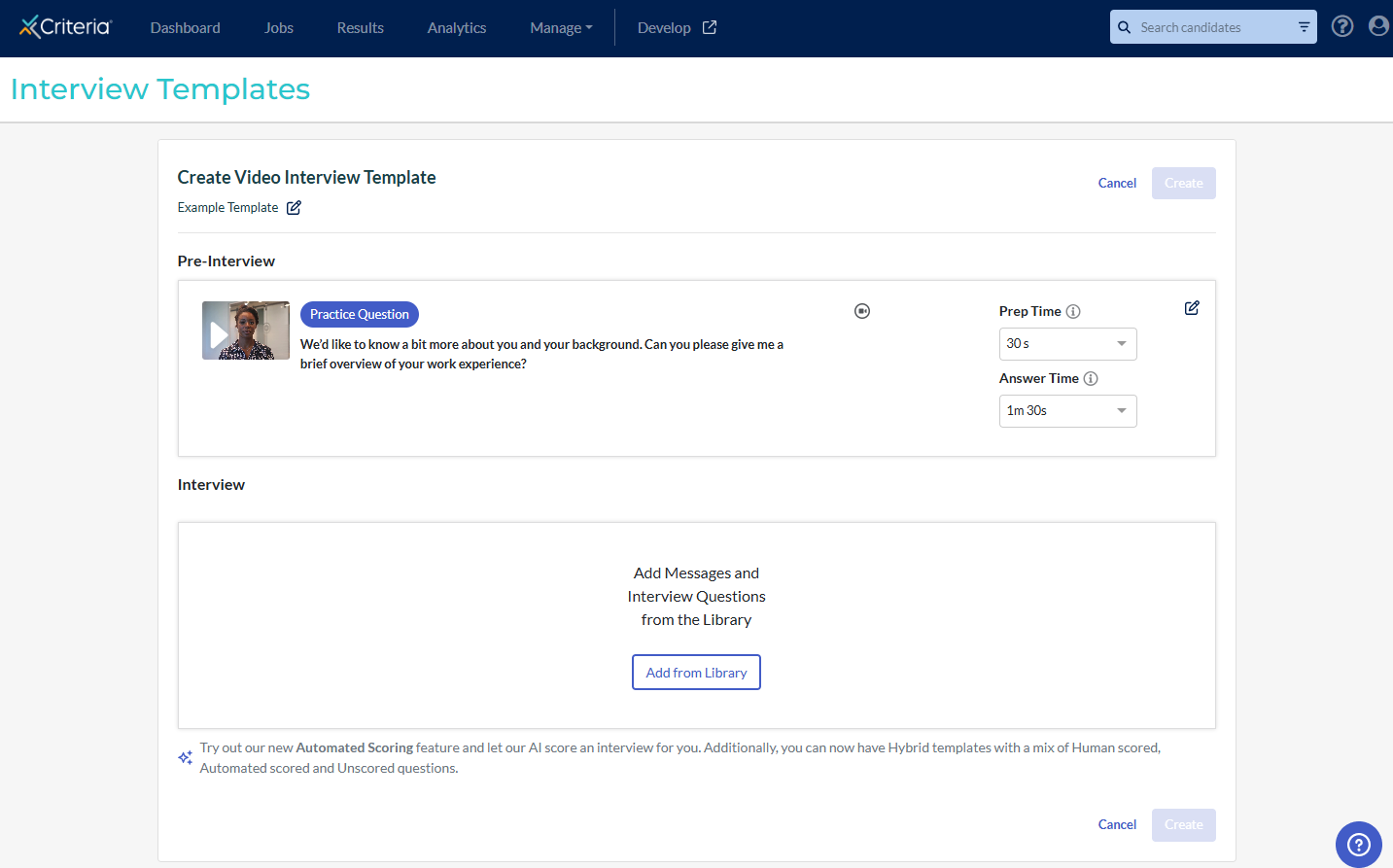
- Click Add from Library to open the Interview Content Library modal.
- You can filter the Custom Library questions by Scoring Type by ticking Automated or Human.
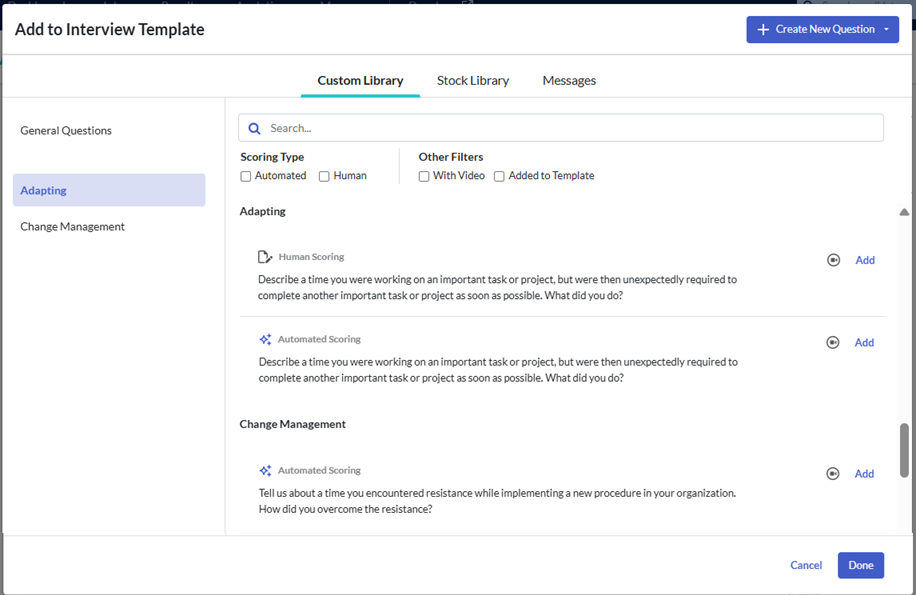
- You can also choose to only view questions and messages that have a video and/or have already been added to the template.
- You can filter the Custom Library questions by Scoring Type by ticking Automated or Human.
- Click Add next to each question and message you want to include in the interview template. Click Done once complete.
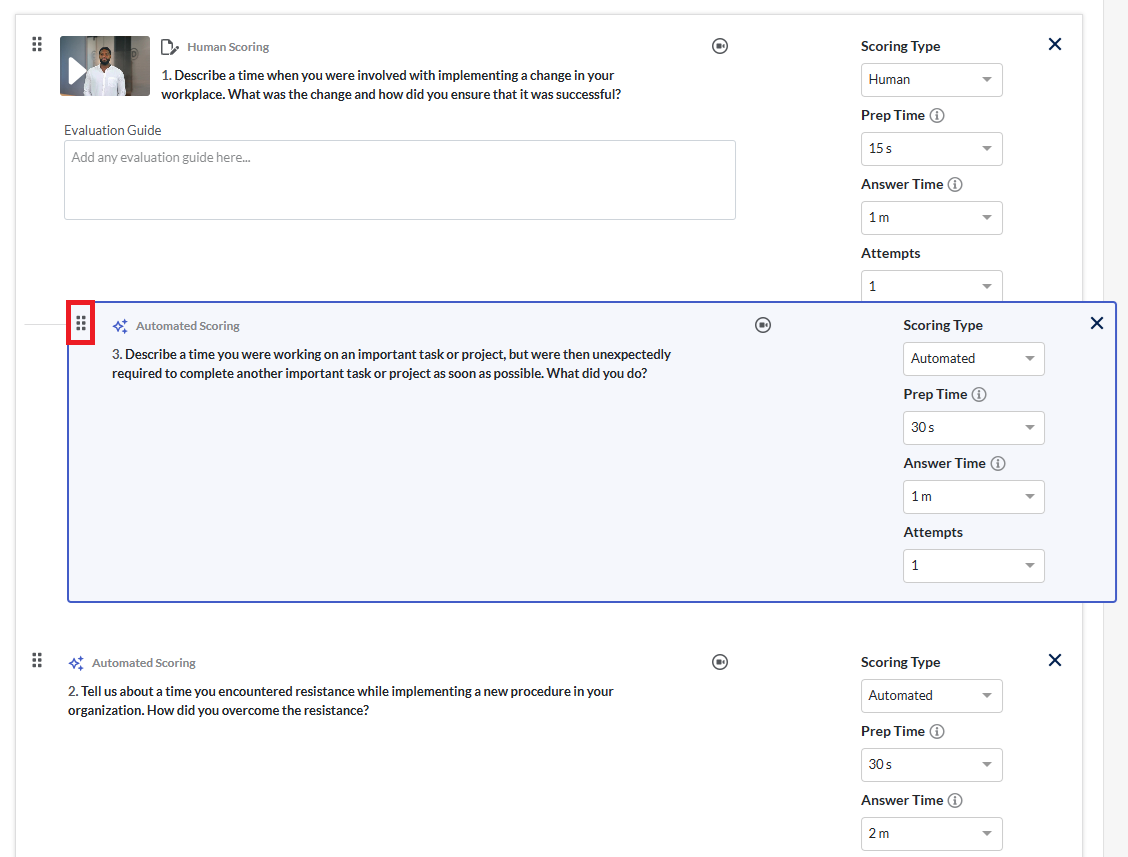
- Arrange the questions and messages in the order you want to present them to candidates. Click on the 6 dots to the left of the item, then drag and drop it to the correct place.
Pre-Interview Practice Question
You can change the Pre-Interview Practice Question your candidates will see by clicking the Edit icon to access the Interview Content Library modal.
Scoring Types
You must decide which scoring type you want to use for each question. Your template may be completely human scored, completely AI scored, or to have a mix of human scoring and AI scored questions (Hybrid Scoring).
- Human Scoring: questions are manually evaluated by your team. Example question: Why do you want to work here?
- Automatic Scoring: questions are automatically scored by Criteria's IIQ (Interview Intelligence). This is best used for behavioral / situational / experience-based questions.
- Unscored: questions that do not need to be scored. Example question: What is your salary expectation?
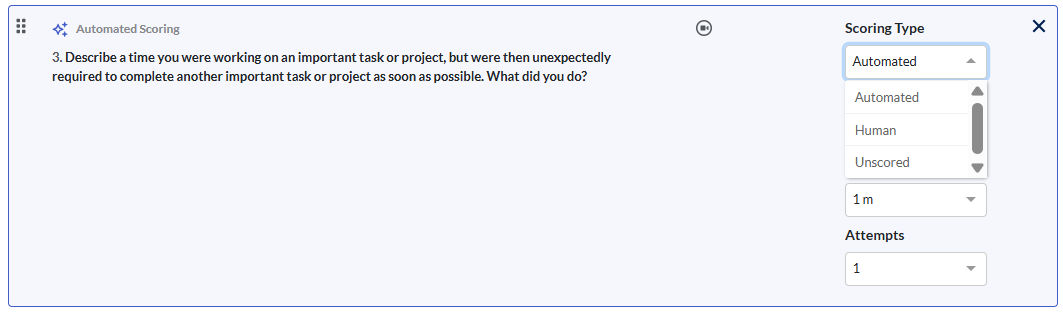
- Click Scoring Type next to each question to select how it will be evaluated.
- Questions created with the Human Scoring score type can only be set to Human or Unscored.
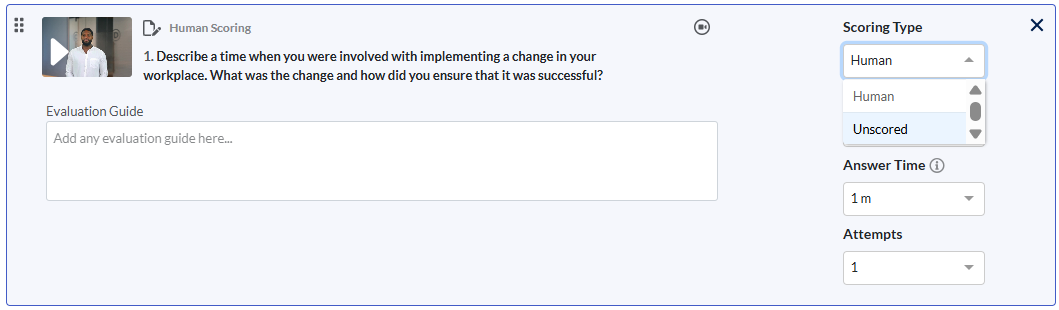
- Questions in the Stock Library cannot be automatically scored; these must be rated by an evaluator (Human) or set to Unscored.
- Questions created with the Automated Scoring score type can be changed to Human or Unscored in the template.
- Questions created with the Human Scoring score type can only be set to Human or Unscored.
Adjusting the prep time, response time, and number of attempts
- You can adjust the prep time, answer time and number of attempts candidates can have.
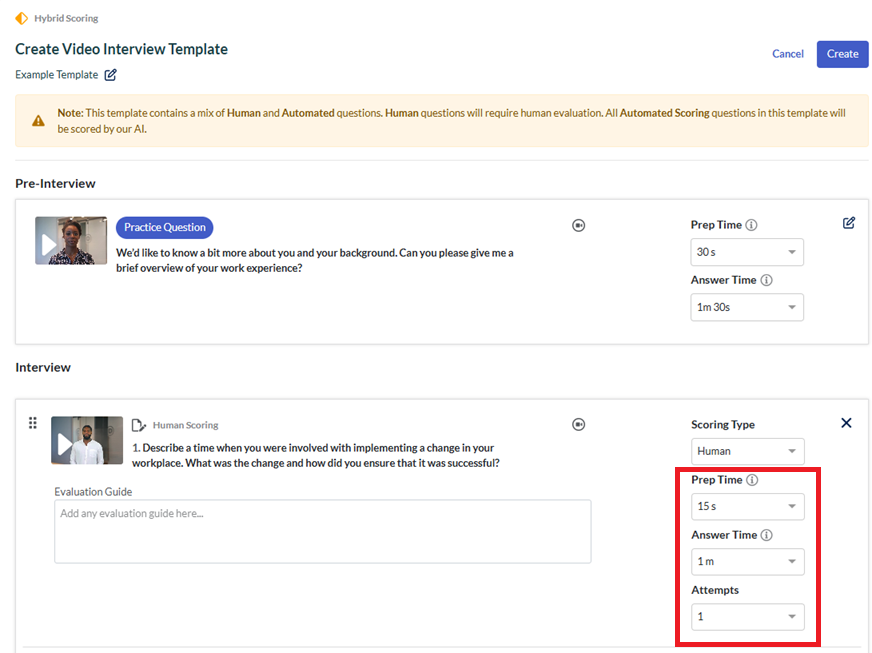
- Prep Time: the amount of time candidates have to consider how to respond to the question before the recording begins.
- Prep time is not provided to candidates if the question requires a written response.
- Answer Time: the amount of time candidates have to respond to the question. This is the recording that your reviewers will be evaluating your candidates on.
- Attempts: you can provide candidates with multiple attempts to answer the question. If a candidate doesn't like their response in the first attempt, they can choose to do the question again. If only 1 attempt is allowed for the question, the candidates will not be able to re-do their response to the question. The default setting for Attempts is always 1.
- Candidates are only allowed 1 attempt if the question requires a written response.
- Prep Time: the amount of time candidates have to consider how to respond to the question before the recording begins.
Save the video interview template
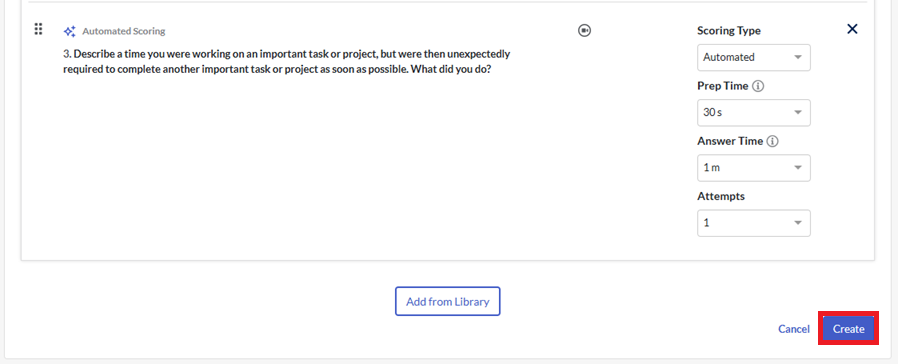
- Once you’re happy with the layout and settings for the interview template, click Create.
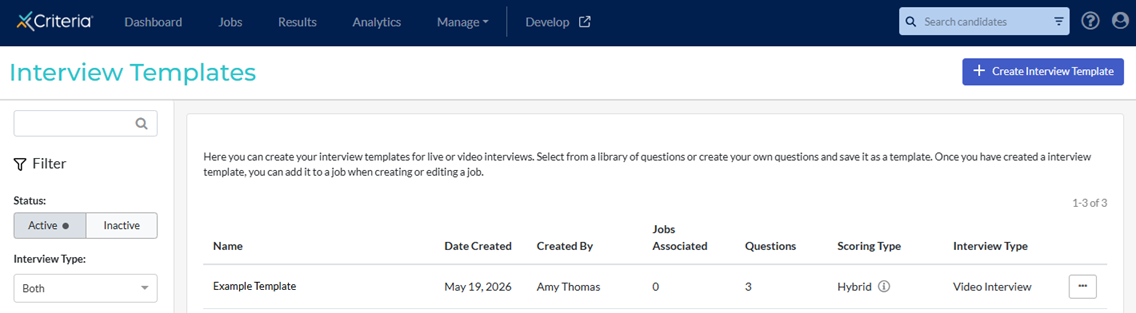
- Your new video interview template will be added and available to all users with access to the templates section.
Editing a video interview template
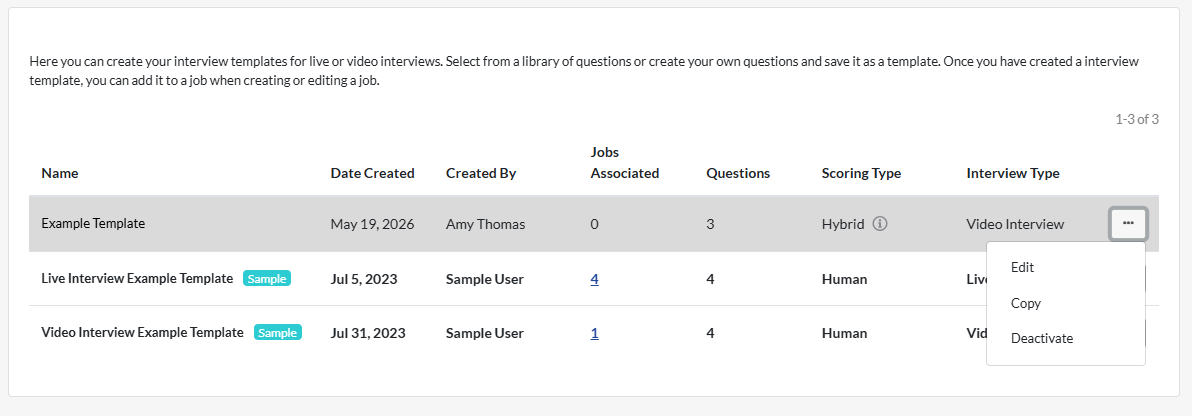
Click ... More Actions and select Edit to make changes to the template or Deactivate to move the template to your Inactive list. Templates cannot be deactivated if they are associated with one or more jobs.
Copy video interview template
To copy a video interview template, click ... Actions next to the template to be copied and select Copy from the dropdown list.
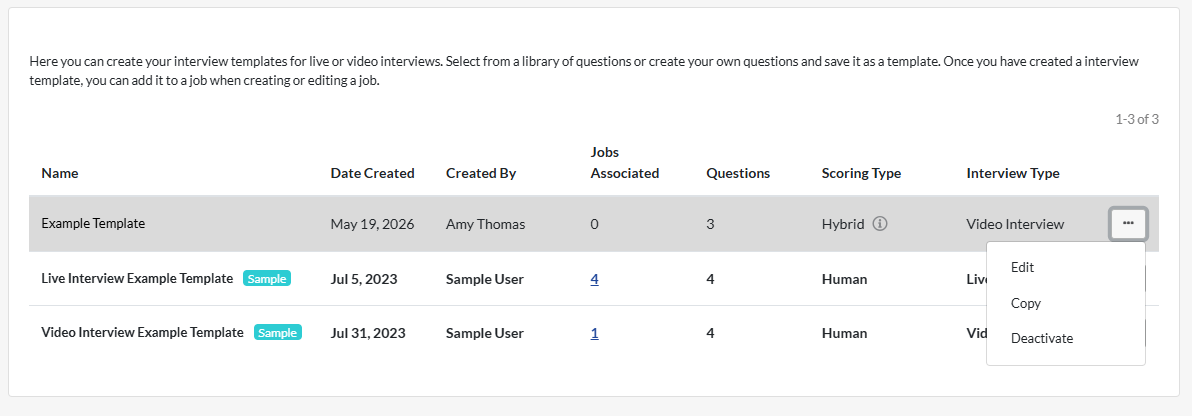
A copy of the template is created. The duplicate video interview template will include all aspects from the original, including all questions, their order, any changes to the prep or answer times and any custom evaluation guides you had in the original template.
You can edit the duplicate template by clicking ... Actions and selecting Edit from the dropdown list. Any changes you made to the duplicate template will not affect the original template it was copied from.
Next Steps
Create a custom email template to invite your candidates to complete a video interview and set up the job.
Click here to view more information about using video interviews.
