Create Departments and Teams in Develop
 Updated
by
Amy Thomas
Updated
by
Amy Thomas
To make the most of Develop’s features, employees should be organised into teams. While creating departments is optional, teams are required for employees to participate in TEAMscans, contribute to Team Personality Reports, and take part in Weekly Check-Ins.
Departments
Create a department
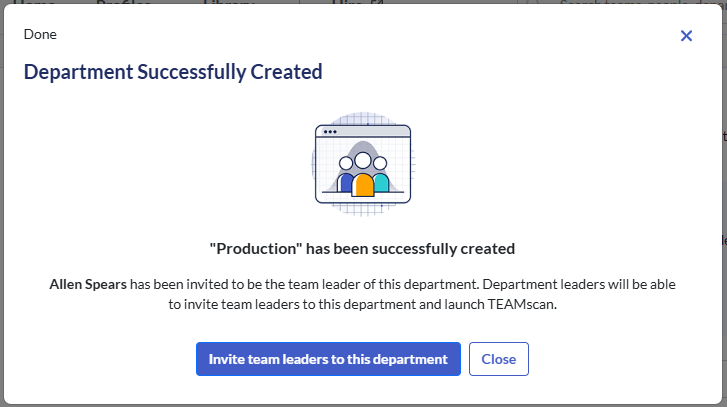
- Only admin users can create a Department in Develop. In the Admin Console, click the Departments tab.
- Click Create a Department.
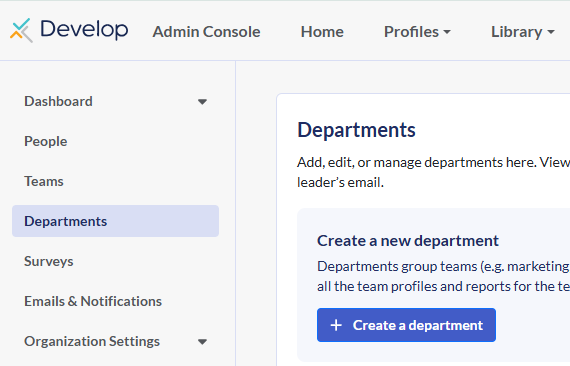
- Enter in the name of the department and select the type of department by clicking on the dropdown list.
- Toggle Add Department Leader on if you wish to assign the department to a team member. Select the team member from the dropdown list. Only one person may be selected as Department Leader.
- Toggle Send invite email to this department leader? on if you wish to inform them that the department has been created.
- Click Save.
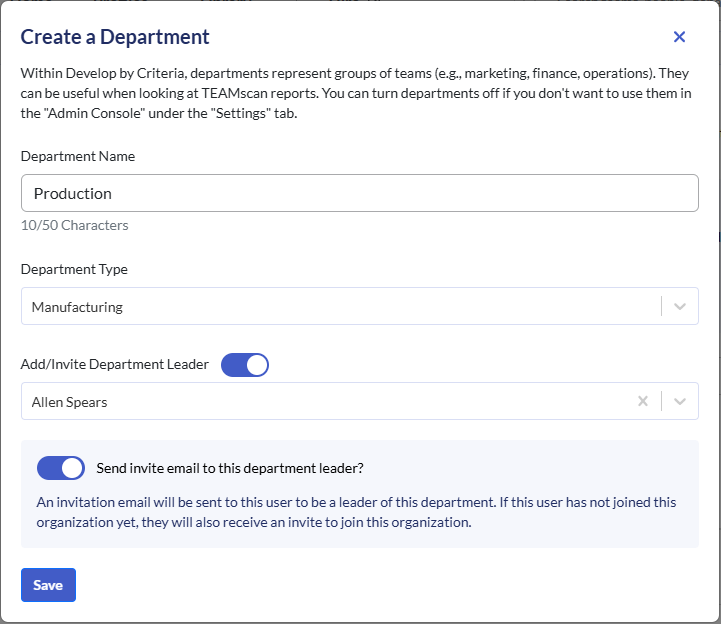
You can begin inviting team leaders to join this department by clicking Invite team leaders to this department. You can add team leaders individually by entering their email addresses one by one or upload multiple team leaders via a .csv spreadsheet.
Team leaders may create their own teams within the department, or you can create these on their behalf and assign the team leader to them.
- If you are not yet ready to add team leaders to the new department, click Close to return to the previous screen.
Teams
You can create teams in Develop to facilitate teamwork between:
- Formal teams within your organisation (for example, 'the sales team')
- Temporary teams (such as employees working together on a project).
Teams may be created manually or automatically when team members are added / updated via .csv upload.
In System Settings, select whether you want all users to have the ability to create teams, or restrict this to specific roles or specific individuals.
Create a team manually
- There are two places within Develop from which to manually create a team.
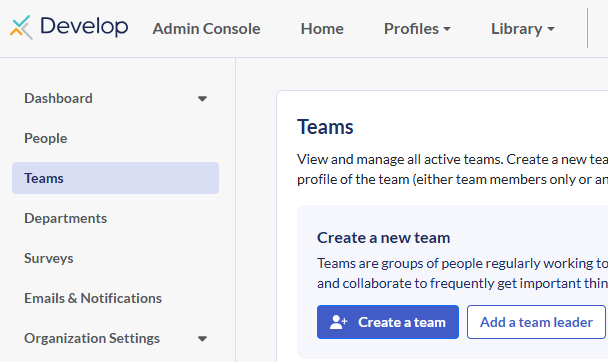
- Click Admin Console in the top menu, then click Teams. Click Create a Team.
- Click Home in the top menu. Click Quick Actions on the right. Click Create a team in the Quick Actions tab.
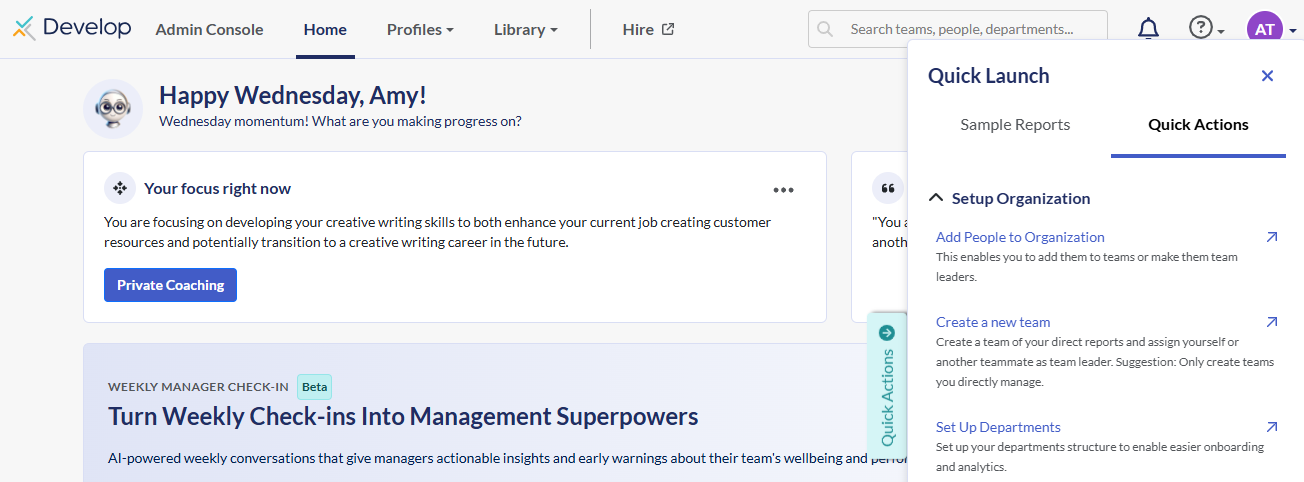
- Click Admin Console in the top menu, then click Teams. Click Create a Team.
- Enter the Team Name. Select the Department the team belongs to from the dropdown list (if applicable) and select the Team Leader from the list of users.
- If accessing from the Home tab, by default, the user logged in will be selected as the Team Leader but you can change this by clicking the X next to your name and selecting another user from the dropdown list.
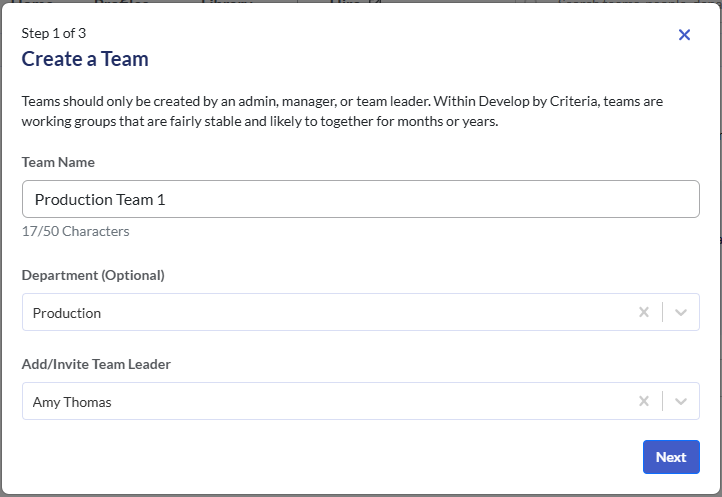
- If accessing from the Home tab, by default, the user logged in will be selected as the Team Leader but you can change this by clicking the X next to your name and selecting another user from the dropdown list.
- Click Next.
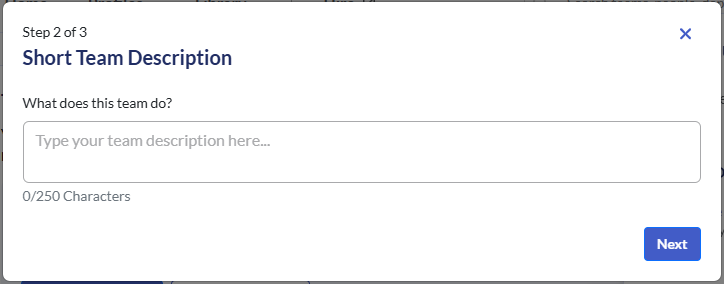
- Enter some text for the Short Team Description. (This is optional.) Click Next. Your team has been created.
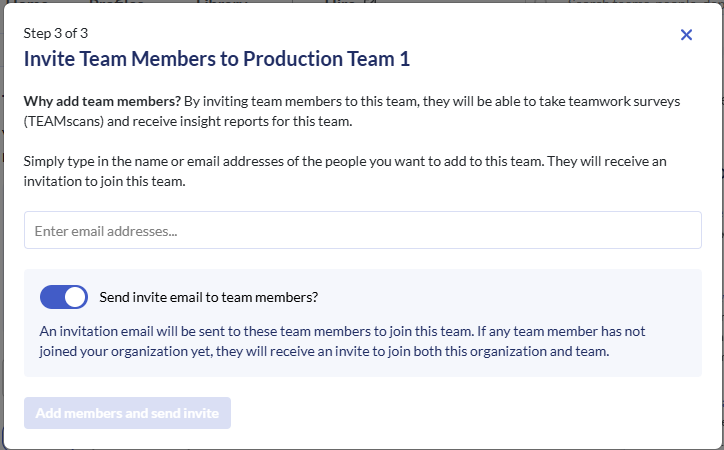
- Add the email addresses of the members of the team one at a time or select them from the dropdown list.
- Each team member will be sent an invitation to join the team if you have toggled Send invite email to team members? on. If they do not yet have a user profile within your Develop account, this will be created for them automatically.
- Click Add members if you are not sending the invitation email or Add members and send Invite if you are sending the invitation email.
Automated Teams
Automated teams are created when team members are added or updated via a .csv upload if the Automated Teams option is on for your Develop account.
Automated Teams must be enabled before you upload your team members, otherwise you will need to complete the upload process again to update them.
Team members will be automatically assigned to their manager's team. You can choose whether to allow team leaders to edit these teams in your organisation's settings.
