Enabling Weekly Manager Check-ins with Coach Bo
 Updated
by
Amy Thomas
Updated
by
Amy Thomas
Starting the Weekly Manager Check-ins Pilot
As a Develop Admin, you can turn on Weekly Manager Check-ins in your Develop account.
Log into Develop and go to Admin Console. Click Dashboard in the left menu.
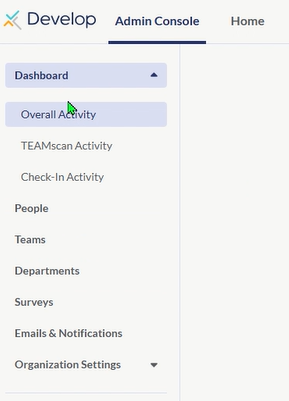
Click Start Pilot in the Weekly Manager Check-ins banner.

The Weekly Manager Check-ins will be automatically enabled. You will be directed to the Check-Ins settings page, to select who will receive the check-ins and who will receive the reports.
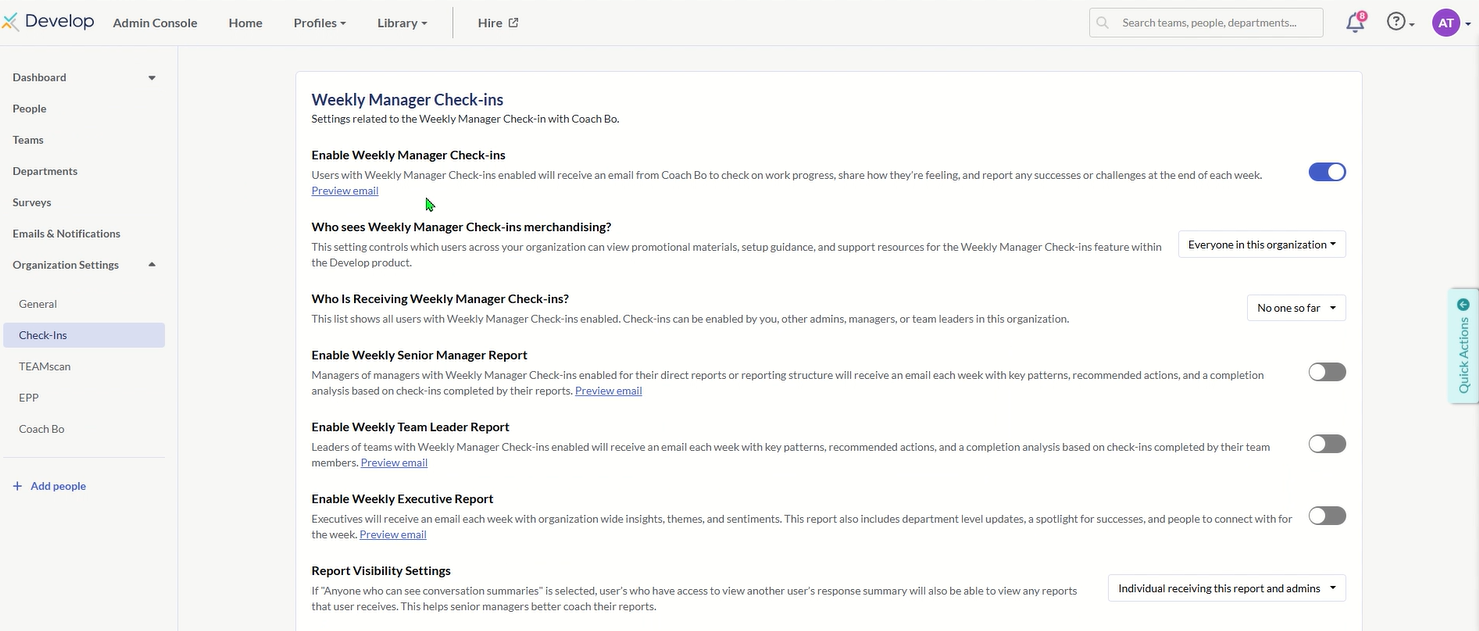
Weekly Manager Check-ins Settings
Enable Weekly Manager Check-ins
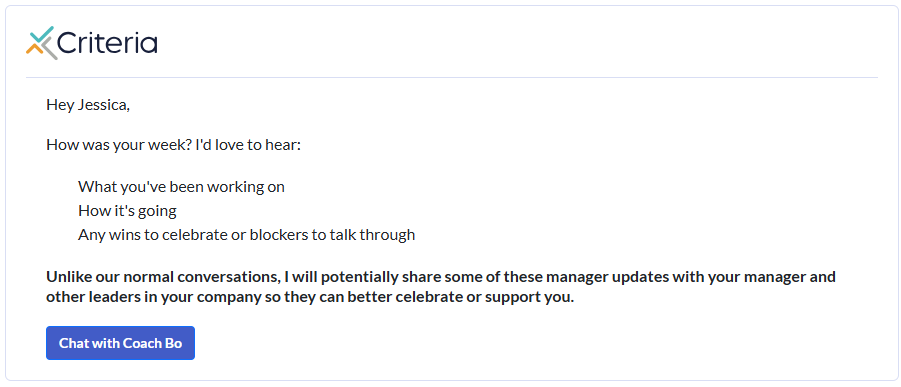
Users with Weekly Manager Check-ins enabled will receive an email from Coach Bo to check on work progress, share how they’re feeling, and report any successes or challenges at the end of each week.
Who sees Weekly Manager Check-ins merchandising?
This setting controls which users across your organization can view promotional materials, setup guidance, and support resources for the Weekly Manager Check-ins feature within the Develop product.
While you are conducting your pilot program, you may wish to select Admins so that no one else in your organization sees the messaging as they may become confused between this and their regular Coach Bo sessions.
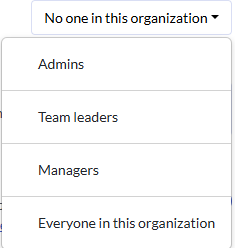
Who Is Receiving Weekly Manager Check-ins?
This list shows all users with Weekly Manager Check-ins enabled. Check-ins can be enabled by you, other admins, managers, or team leaders in this organization.
For your pilot program, we recommend having a few teams complete the Check-Ins. See below for further information.
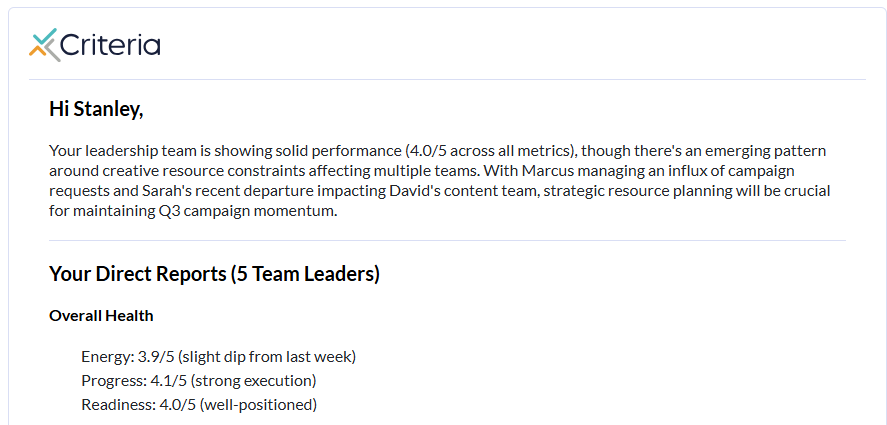
Enable Weekly Senior Manager Report
Managers of managers with Weekly Manager Check-ins enabled for their direct reports or reporting structure will receive an email each week with key patterns, recommended actions, and a completion analysis based on check-ins completed by their reports.
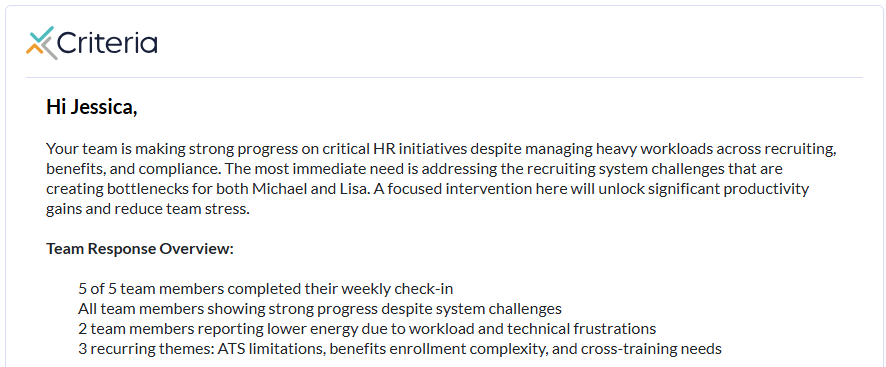
Enable Weekly Team Leader Report
Leaders of teams with Weekly Manager Check-ins enabled will receive an email each week with key patterns, recommended actions, and a completion analysis based on check-ins completed by their team members.
Enable Weekly Executive Report
Executives will receive an email each week with organization wide insights, themes, and sentiments. This report also includes department level updates, a spotlight for successes, and people to connect with for the week.
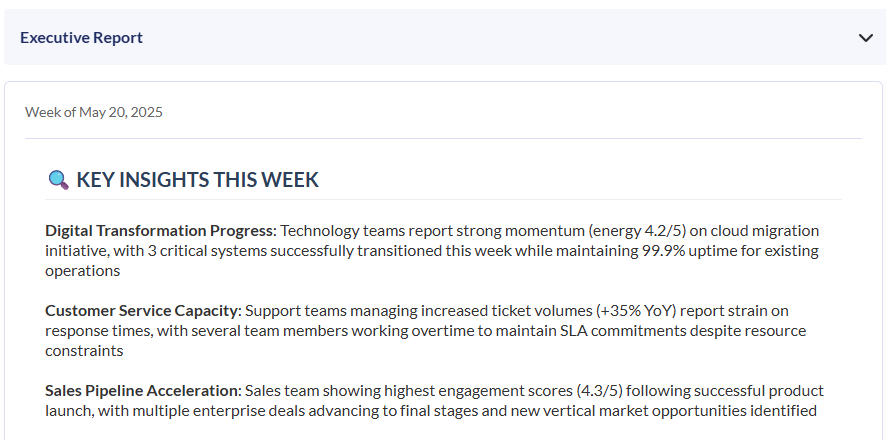
This can be enabled for all Develop Admin users or a specific group of Admin users. See below for further information.
Report Visibility Settings
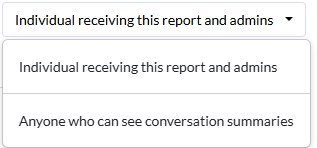
If "Anyone who can see conversation summaries" is selected, users who have access to view another user’s response summary will also be able to view any reports that user receives. This helps senior managers better coach their reports.
Visibility Defaults
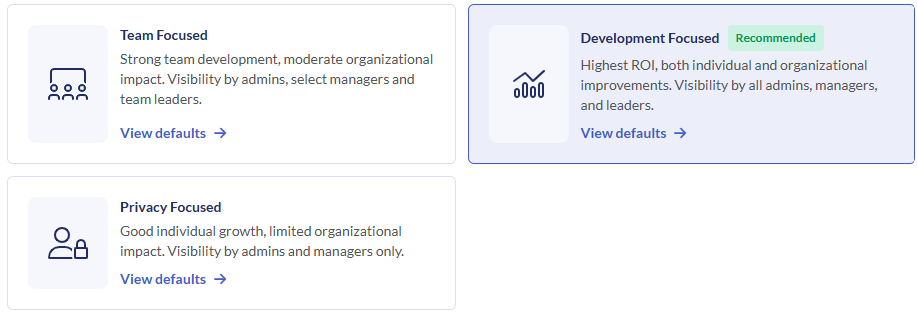
Choose privacy defaults for Weekly Manager Check-ins reports. This will set privacy defaults for each Weekly Manager Check-ins report type across your organization.
- Team Focused
- Development Focused
- Privacy Focused
Setting | Who Sees Response Summary | Who Sees Scores | Best For |
Privacy Focused | Admin + User's Manager only | Admin + Manager + Team Leaders + Reporting Line Managers | Highly regulated industries, earlypilots, building initial trust |
Team Focused | Admin + Manager + Team Leaders | Admin + Manager + Team Leaders + Reporting Line Managers | Mid-sized orgs, team-based structures |
Development Focused | Admin + Manager + Team Leaders + Reporting Line Managers | All leadership levels | Organizations with strong feedback culture, maximum coaching value |
Select participants in the Weekly Manager Check-ins Pilot
To run your Weekly Manager Check-ins pilot with a smaller group, you can choose specific managers or teams to participate. To ensure only those selected receive the email from Coach Bo, make sure to select only the relevant managers or teams when setting up the pilot.
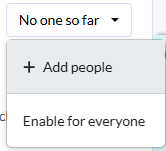
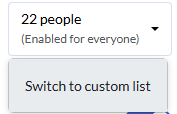
In the Who Is Receiving Weekly Manager Check-ins? setting, click the box on the right.

Select +Add people. If you have already started a custom list, this will say Switch to custom list.
You can select either to add teams or managers.
Managers
Click Select managers. In the second dropdown, select a manager.
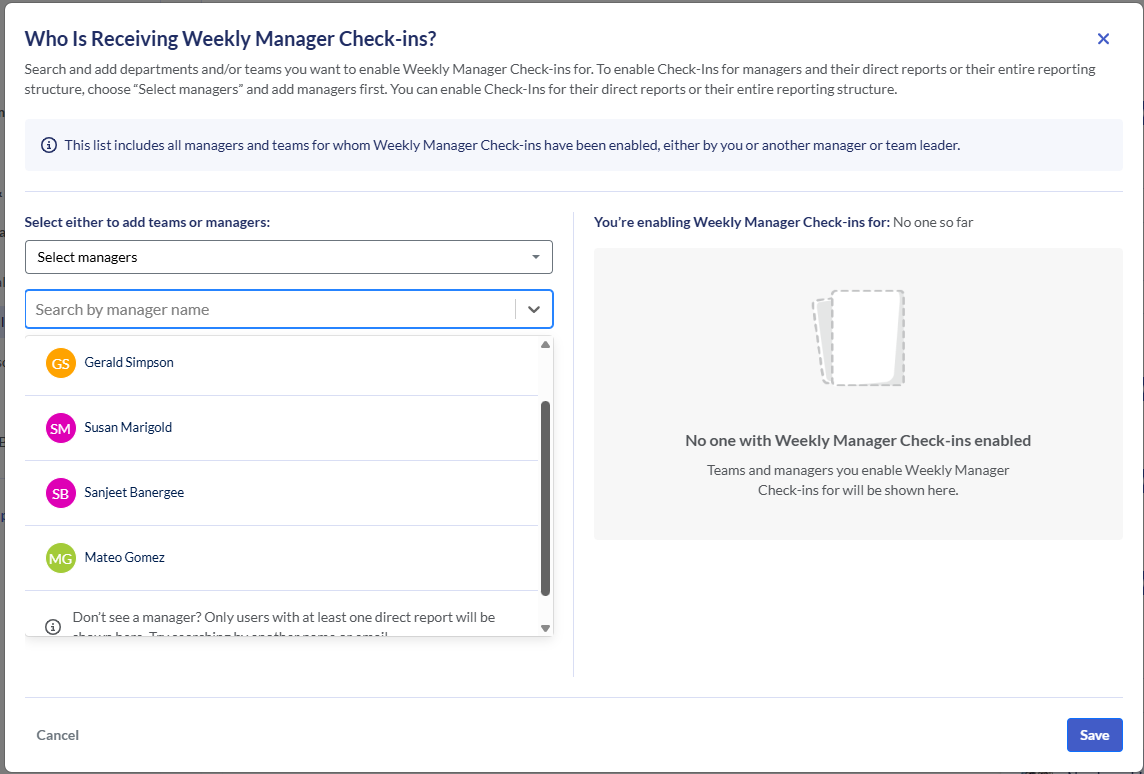
Choose whether to enable for this manager and just their direct reports, or their entire reporting structure. Click + Add.
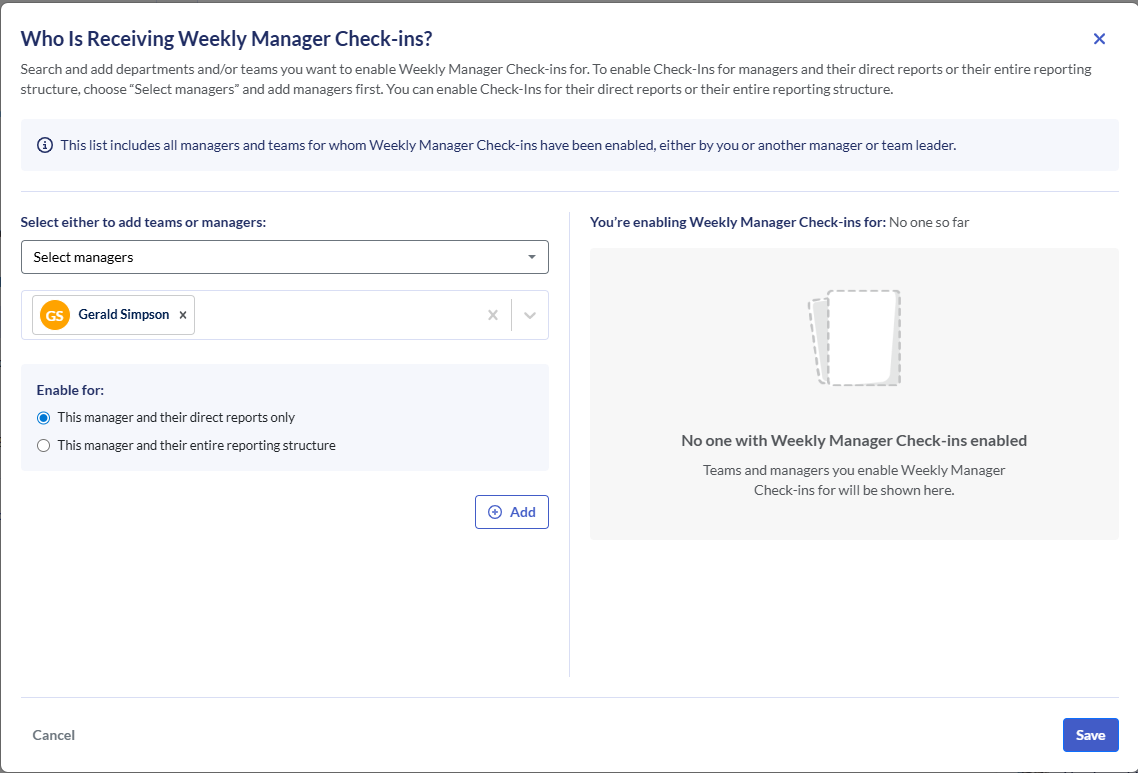
Repeat until all managers in the pilot program have been added. Click Save.
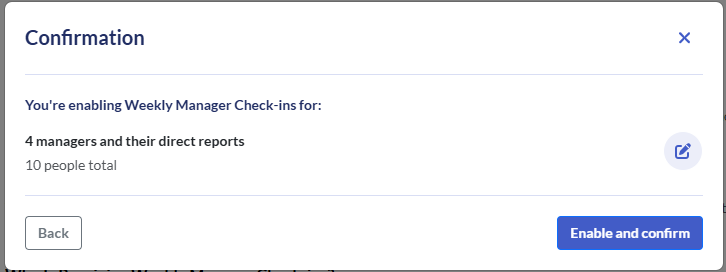
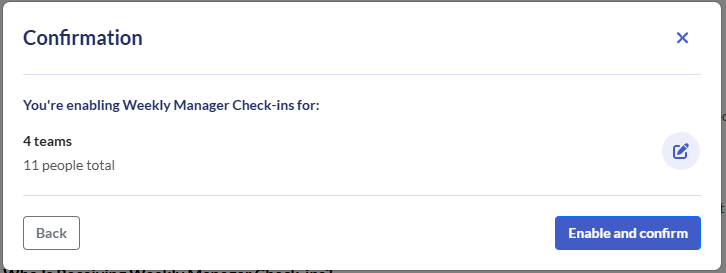
Click Enable and confirm.
Teams
Click Select teams. In the second dropdown, select a team.
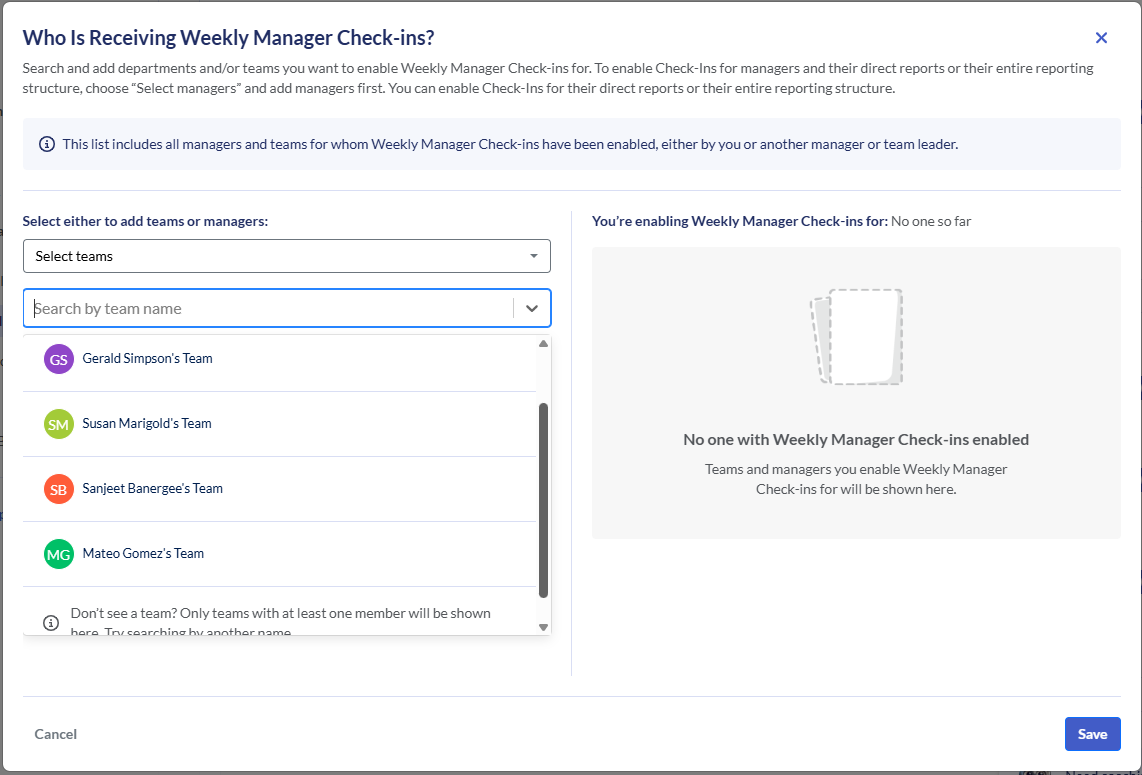
Click + Add.
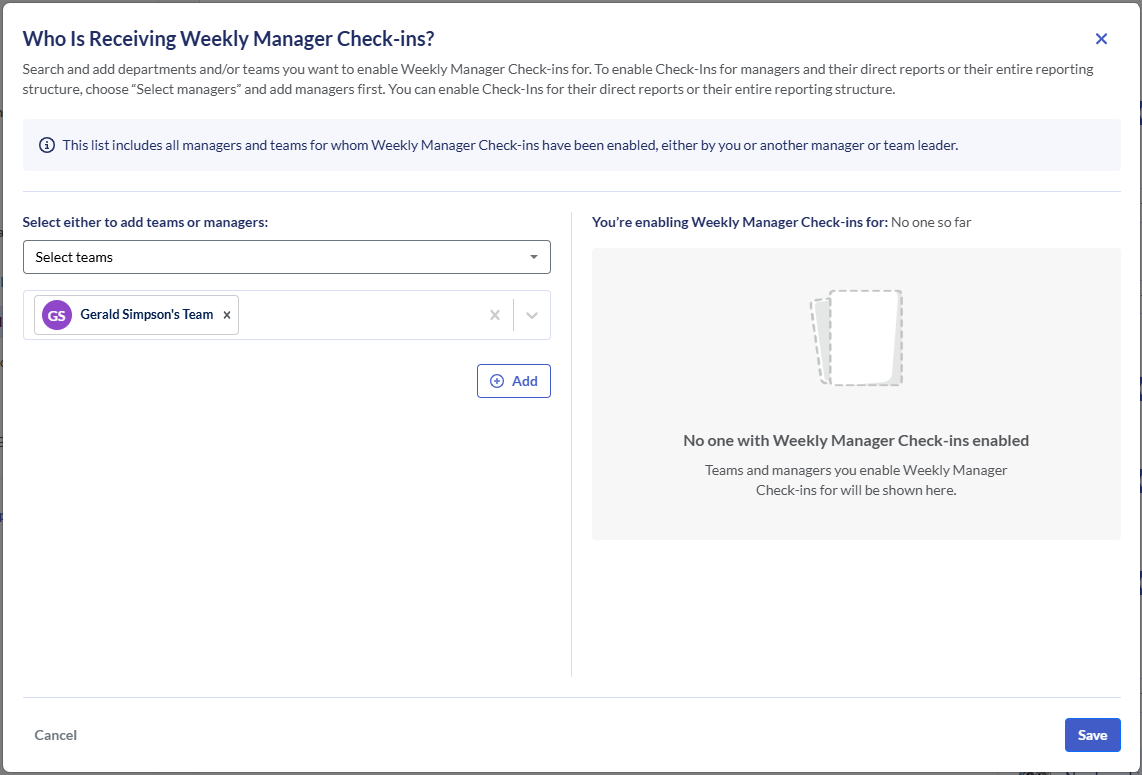
Repeat until all teams in the pilot program have been added. Click Save.
Click Enable and confirm.
Select the Admin users to receive the Executive Report
The Executive Report provides an overview of your organization's status. To ensure only Admins who require this information will receive the report, click Enabled for all admins.

Select Custom List.
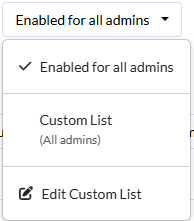
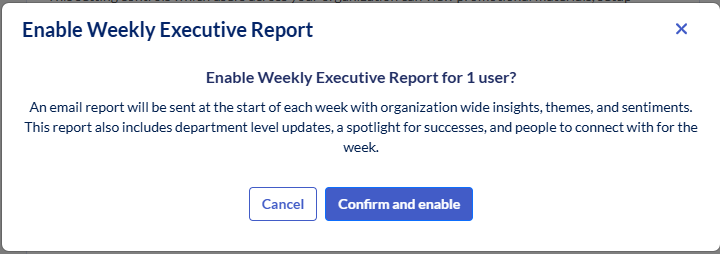
Select the admin users from the dropdown list. then click Enable.
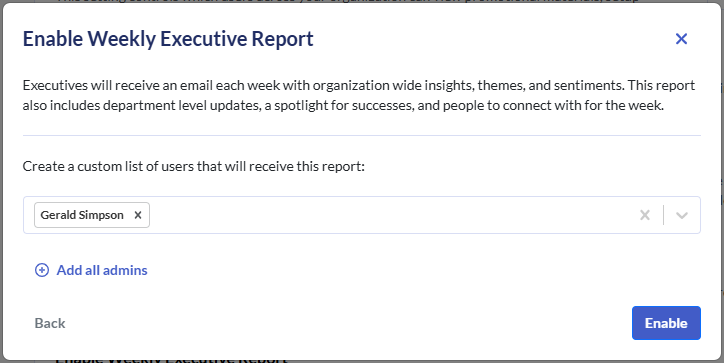
Click Confirm and enable.