Proctoring: Common Questions
 Updated
by
Amy Thomas
- Inviting candidates
- Candidate support
- Do my candidates need special software to access the proctored assessment?
- My candidate has questions about the proctored assessment. Is there someone they can talk to about this?
- My candidate does not have access to a second device with a camera. What should I do?
- My candidate is being prompted to switch to a computer. Why can't they complete on a mobile or tablet?
- Troubleshooting
- I tried to reuse my candidate's previous results but it sent them an invitation. Is there something wrong?
- I can't see the proctoring report images - they are all blurry. What can I do?
- I can't find the download images option. Where do I find this?
- I have the Blind Hiring Option enabled for my profile, but I can see the Proctoring Report. How do I hide this?
Inviting candidates
My organization/job has Proctoring enabled. Can I invite a candidate to complete the assessment without proctoring?
You certainly can! When creating the invitation, simply toggle the Proctoring option off on the Invitation Settings screen. Click here to learn how to invite candidates for an assessment.
We use two rounds of assessments and I want to use Proctoring for the second round of assessments as well. Can I do this?
Absolutely! Proctoring can be used for any pipeline stage that includes assessments.
Can I use Proctoring with the open assessment links?
Yes, if your organization uses the open links for candidates to apply for jobs, you just need to ensure that Proctoring is enabled in the job settings. Candidates accessing the assessment via the open link will then complete the testing under proctored conditions.
Candidate support
Do my candidates need special software to access the proctored assessment?
- The screen sharing option does not work on mobile devices. If a candidate is using a mobile, this will be detected by the platform and the screenshare portion of proctoring will not be administered.
- Candidates will need to connect a secondary camera to the same proctoring session. This is done by scanning a QR code (or following a URL) to link the secondary device to the assessment session and confirm it’s the same session being proctored on the primary device. If a separate secondary device isn’t available, candidates may be able to use a different camera on the primary device (for example, a laptop’s built-in camera plus an external webcam).
Please note the following:
Candidates don’t need to install any special software. They can complete the proctored assessment in a supported web browser on a device with a webcam. Candidates will be prompted to allow camera and microphone permissions before proceeding.
We designed our proctoring solution with simplicity and flexibility in mind. Proctoring is compatible on all devices, including desktops, tablets, and phones.
My candidate has questions about the proctored assessment. Is there someone they can talk to about this?
Certainly! We have two guides about proctoring to assist candidates with completing their assessment. You are welcome to share the links below with your candidates.
About Proctoring for candidates
Proctoring troubleshooting guide for candidates
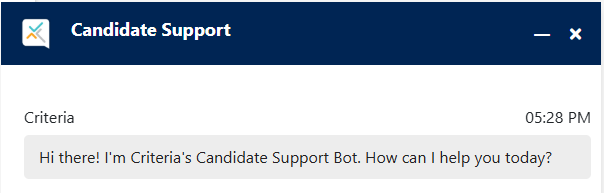
Our dedicated candidate support bot is available 24/7 to help candidates with any queries they have. We encourage candidates to click on the link in the bottom right of the assessment centre to receive immediate assistance from the candidate support bot.
My candidate does not have access to a second device with a camera. What should I do?
When you toggle Monitoring: Secondary Camera on in the Proctoring options, your candidate will need to select a secondary camera that will also capture images while they are completing their assessments.
If a candidate does not have access to a second device with a camera, but their primary device does, they can use these (for example, if they have a laptop camera and a webcam). If this is not possible, they can try to borrow a second device from a friend or family member.
If your candidate advises you that they do not have any options for accessing a second camera, you will need to reinvite the candidate to complete the assessments, with the Monitoring: Secondary Camera option toggled off. The camera monitoring on the primary device will then provide the only coverage for the testing session.
My candidate is being prompted to switch to a computer. Why can't they complete on a mobile or tablet?
There are a couple of possible reasons why your candidate is being directed to change to a laptop or desktop device.
- Some assessments, such as the Computer Literacy & Internet Knowledge (CLIK) test and typing tests need to be completed on a computer, due to the assessment requirements.
- The Device Use setting is set to Desktop only. Learn more here. Note that if the candidate is being asked to complete one of the tests that need to be completed on a computer, changing this setting will not affect that.
Troubleshooting
I tried to reuse my candidate's previous results but it sent them an invitation. Is there something wrong?
If the testing your candidate completed previously was done as a proctored assessment, you will not be able to reuse the results. Even if you have selected the Reuse Results option, the candidate will be asked to complete the assessment again.
I can't see the proctoring report images - they are all blurry. What can I do?
Viewing the proctoring report is restricted to users with certain access levels, to protect your candidates' privacy. If you do not have admin or manager level access, or the Viewing Proctoring Recordings option is not included in your custom access level, please reach out to your account's admin user to request a change to your access level. If you are not sure what level access you have, your account's admin user can confirm this for you.
I can't find the download images option. Where do I find this?
As with the proctoring report images, the download images option is restricted to users with certain access levels. Please reach out to your admin user to request a change to your access level.
I have the Blind Hiring Option enabled for my profile, but I can see the Proctoring Report. How do I hide this?
While the Blind Hiring Option conceals identifiable text-based information, unfortunately some features in the Criteria platform are not covered by this. Proctoring and Video Interviewing can still involve images, audio and video recordings of the candidate, which may still be visible.
