Harmful Content Detection in Check-ins
 Updated
by
Amy Thomas
Updated
by
Amy Thomas
Harmful Content Detection is an optional Develop feature, available on request. It uses AI to review weekly Check-in conversations with Coach Bo and flag messages that may point to a safety or HR concern, including self-harm. When the system finds a serious risk, it alerts the people your organization has chosen, so a person can follow up quickly.
Layers of support in Develop
Harmful Content Detection is one of several ways Develop helps concerns reach the right people:
| Layer | What it does |
|---|---|
| 1. Coach Bo's own guidance | Coach Bo isn't a therapist, and Coach Bo never escalates or alerts anyone. Admins can set the Coach Bo Style to Conservative. When they do, Coach Bo keeps conversations focused on work-related issues and points people to organizational resources for topics outside of work. This applies in private chats and in Check-ins. For sensitive topics, Coach Bo suggests the person reach out to trusted people for help, or to your HR policies and teams.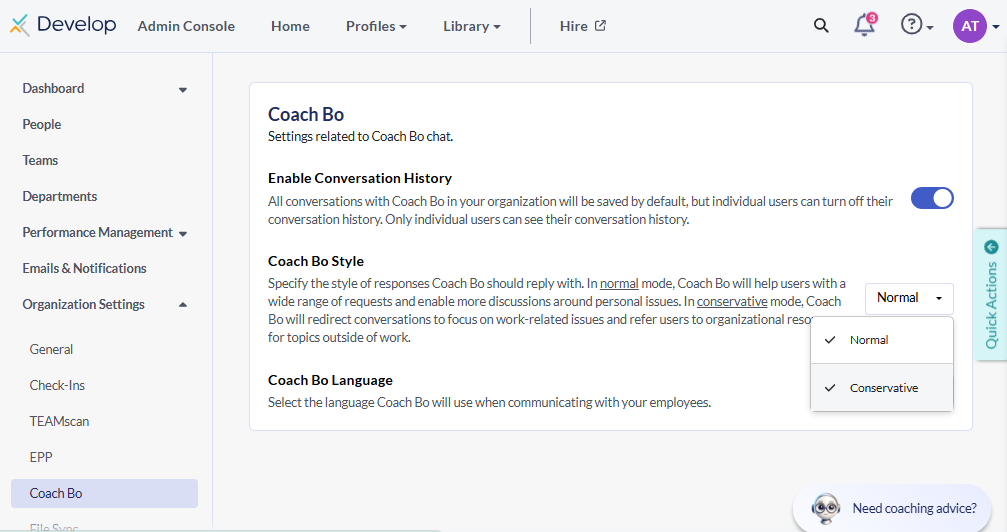 |
| 2. Harmful Content Detection | Flags possible safety or HR concerns in Check-ins, such as self-harm, and alerts the people you choose. Managers can be included. Admins can review flagged concerns on the Check-In Activity page. |
| 3. TEAMscan comments | Employees can raise concerns in their own words in TEAMscan's free-text comments. Admins can read all comments from all participants. |
| 4. Your people and processes | Managers, HR, your EAP and your crisis procedures. This is the most important layer, and everything above is there to support it. |
Shared responsibility
When Harmful Content Detection is turned on, the person turning it on sees a confirmation and has to accept it before the feature starts. It explains that:
- Flagged messages are estimates, not confirmed findings, and every alert needs human review before any action is taken.
- The tool doesn't replace your organization's existing HR, safety or crisis-reporting processes.
- Managers and admins are responsible for using their own judgment on every alert.
- By turning it on, you acknowledge that it's an additional layer of support and doesn't guarantee that every concern is detected.
We ask organizations that use this feature to:
- Choose alert recipients who can respond quickly and with care.
- Have a clear response process, including EAP, counseling and crisis resources.
- Follow up with people as good teammates. The technology can raise a flag, but people provide the care.
Escalation at a glance
- Detect: AI reviews Check-in conversations and decides whether there's a risk.
- Alert: for high and critical concerns, an email goes right away to the recipients you've chosen. All flagged concerns can be reviewed on the Check-In Activity page.
- Respond: your organization's people and processes take it from there.
Develop doesn't act on its own beyond sending the alert.
What is reviewed
- Only weekly Check-in conversations are reviewed.
- Private coaching conversations with Coach Bo are never reviewed by this feature and are never shared.
What it looks for
Detection flags messages in these categories:
| *️⃣ Self Harm | *️⃣ Sexual Harassment |
| *️⃣ Harmful to Others | *️⃣ Discrimination |
| *️⃣ Bullying | *️⃣ Retaliation |
| *️⃣ Harassment | *️⃣ Domestic Violence |
Detection doesn't rely on a keyword list. The AI follows written classification instructions and reads what the conversation means. This helps it tell real concerns apart from everyday phrases like "this project is killing me," but it won't always get it right.
How it works
- Screening: after each Check-in message, an AI model checks whether the message might be harmful.
- Review: if a message is flagged, a second AI model reviews the full conversation once it has been inactive for about 10 minutes. This gives the employee time to add context. The model then confirms or rejects the concern, labels the category, assigns a severity and writes a short reason.
- Alerting: depending on the severity, the concern is recorded and the right people are notified.
Severity levels
Severity | What happens |
 | Recorded and shown on the Check-In Activity page. No email is sent. |
 | Recorded and shown on the Check-In Activity page. No email is sent. |
 | Recorded, and an email alert is sent right away. |
 | Recorded, and an email alert marked "Immediate Attention Requested" is sent right away. |
Reviewing concerns
Admins can see flagged concerns, including low and medium ones, in the Admin Console under Dashboard → Check-In Activity.
- A banner shows when there are concerns that haven't been addressed yet.
- If you decide a concern isn't valid, you can dismiss it.
Who receives alerts
When Harmful Content Detection is first turned on, alerts go to all admins. Admins can change this at any time.
Option | Who is alerted |
Admins only  | All admins in your organization. |
Specific admins | Only the admins you pick. A good fit for sending alerts to HR, a people-safety lead or a clinical lead. |
All with access | All admins, plus the employee's direct manager and the most senior leader in their reporting chain. |
Managers receive alerts only if you choose All with access. The employee who wrote the message never receives an alert about themselves.
Setting it up
Harmful Content Detection
- Ask your Criteria Customer Success team to turn it on for your organization.
- Under Organization Settings, go to Check-ins and toggle Enable Harmful Content Detection on.
- Read and accept the confirmation that appears when the feature is turned on (see Shared responsibility above).
- Choose who receives alerts. Alerts go to all admins by default. To limit them to certain people, choose Specific admins and pick the admins who should be alerted.

Coach Bo Style
Any admin can change this in the Admin Console: go to Coach Bo, then Coach Bo Style, and choose Normal or Conservative. Your Customer Success team can also help.
| Coach Bo Style | How Coach Bo responds |
|---|---|
| Normal (default) | Coach Bo helps users with a wide range of requests and allows more discussion of personal issues. |
| Conservative | Coach Bo redirects conversations to focus on work-related issues, and refers users to organizational resources for topics outside of work. |
Responding to alerts
- Alert emails include the reason for the concern, the category and the severity.
- Respond using your organization's own process. For example, contact the employee, involve HR, or refer them to your EAP or crisis services.
- Check the Check-In Activity page regularly for low and medium concerns, which don't send email.
Before you turn it on: recommended steps
⏹️ Choose recipients who are trained to respond to sensitive or mental-health-related situations.
⏹️ Write down your response plan: who follows up, how quickly, who checks the Check-In Activity page, and which resources (EAP, counseling, crisis lines) they offer.
⏹️ Consider setting Coach Bo Style to Conservative if your workforce or setting calls for extra care.
⏹️ Review TEAMscan comments regularly, as another way to hear concerns.
⏹️ Tell your employees what Check-ins are, who can see Check-in summaries, that private coaching stays private, and where to go for help.
What this feature doesn't do
- It doesn't replace people, or your HR, EAP or crisis processes.
- It doesn't catch every concern, and it can flag things that aren't concerns.
- It doesn't contact the employee, emergency services or your EAP for you.
- It doesn't make EAP referrals or provide EAP resources.
- It doesn't provide mental-health or crisis-response training for managers.
- It doesn't review private coaching conversations.
