One Candidate, Multiple Opportunities: Using Assessment Results Across Jobs
 Updated
by
Amy Thomas
Updated
by
Amy Thomas
When candidates apply for more than one role, or when you identify a better-fit opportunity mid-process, you don’t always want to start assessments from scratch. Here's how to use a candidate’s existing assessment activity and results across multiple jobs, so you can make faster, fairer decisions while minimizing unnecessary retesting for candidates.
In this guide, we’ll cover some common scenarios and our recommended approach for each.
Applied for Job A, but also to be considered for Job B
A candidate has applied for a job with your organization. On reviewing their application, you think they may also be a good fit for another role you are recruiting for. As you are considering the candidate for both roles, they need to have a candidate record in both jobs.
There are two options for creating a new candidate record in the second job.
Reuse Results
In the new job, add the candidate, ensuring that Reuse Results is toggled on. They will automatically be added to Incoming / Stage 1 and an Event created for the evaluation tasks within that stage.
If Incoming / Stage 1 contains one or more assessments that the candidate has already completed, those assessment results will automatically be copied over to the new candidate card.
The candidate will be sent an invitation email to complete any additional tasks (for example, an application form or video interview). If there are no additional tasks to complete, no email will be sent to the candidate.
Copy Candidate
This option is best suited for jobs where:
- The same assessments are used in Incoming / Stage 1 for both jobs.
- There is no application form or resume in the job.
- There is no video interview in this stage.
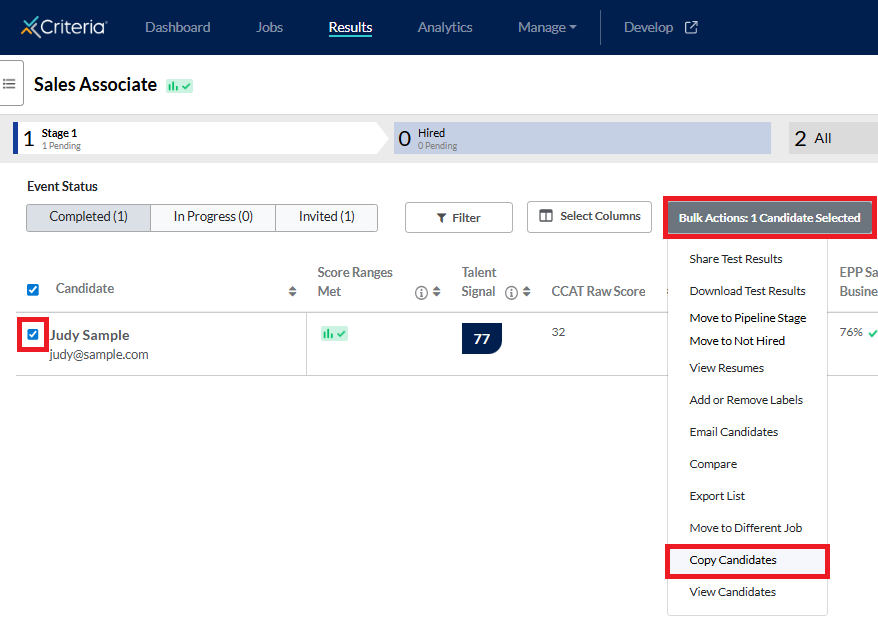
- In the first job, locate the candidate card and tick the box to the left of their name.
- Click Bulk Actions and select Copy Candidates from the dropdown list.
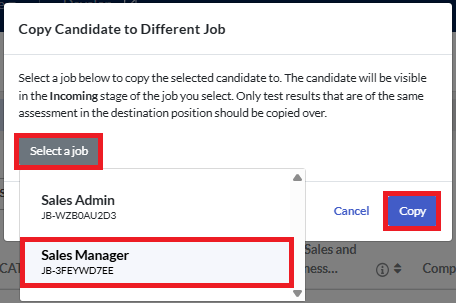
- Click Select a job and choose the job from the dropdown list. Click Copy. The candidates will be visible in the Incoming / Stage 1 stage of the job you select. Only test results that are of the same assessment in the destination position should be copied over.
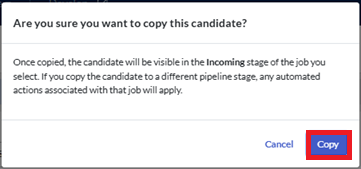
- Click Copy in the confirmation message box.
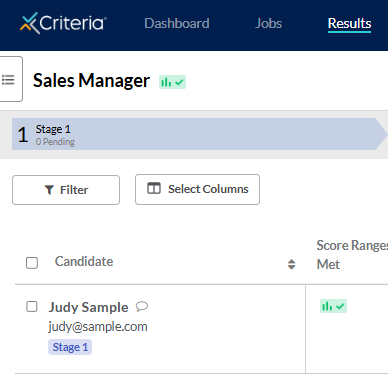
- You will return to the original job, where you can see that the candidate is still visible. Go to the new job and view the Results page. A new candidate card has been created for the candidate.
- The Notes & History tab will indicate that the candidate has been copied from Job A to Job B.
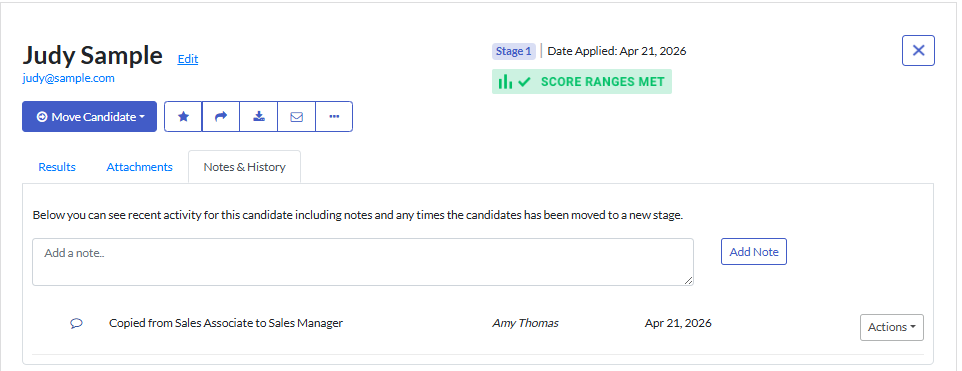
- If the candidate completed an assessment in the first job that is not also being used in the second job, you will still be able to view the results for all the assessments that the candidate completed. Example: for Job A, John completed CCAT and EPP. Their details were copied to Job B, which only uses CCAT. John's candidate card in Job B will show the results for both CCAT and EPP.
- The Notes & History tab will indicate that the candidate has been copied from Job A to Job B.
Applied for Job A, may be better suited to Job B instead
A candidate has applied for a job with your organization. They do not meet the requirements for this role, but you think they may be a good fit for another role you are recruiting for. As you are only considering the candidate for the second role, they only need to have a candidate record in the second job.
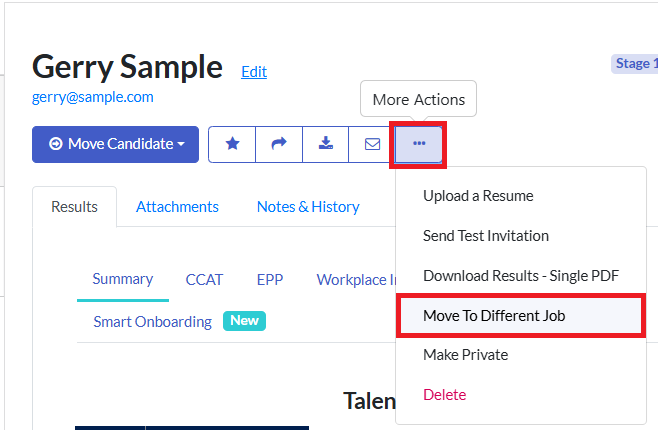
- In the first job, either:
- Locate and open the candidate card. Click ...More Actions and select Move to Different Job. (Best for moving individual candidates.) OR
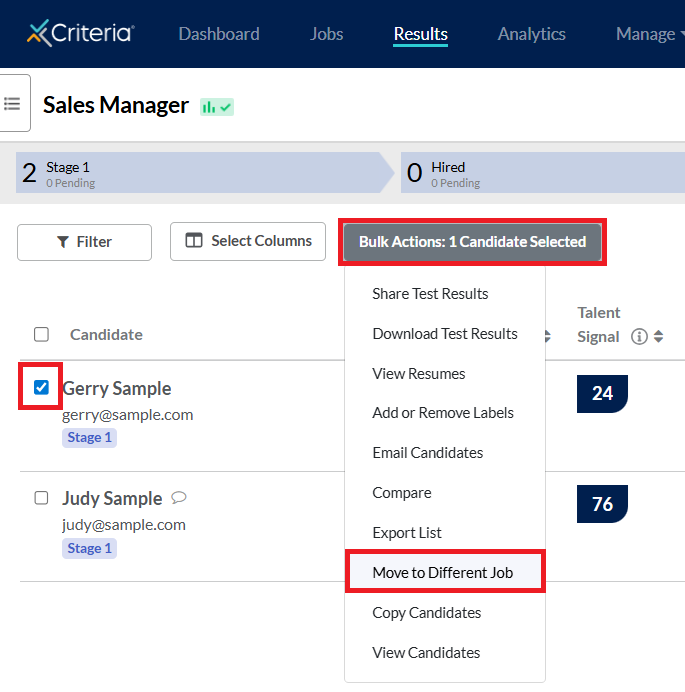
- Tick the box to the left of the candidates' names. Click Bulk Actions and select Move to Different Job from the dropdown list. (Best for moving multiple candidates to the same job.)
- Locate and open the candidate card. Click ...More Actions and select Move to Different Job. (Best for moving individual candidates.) OR
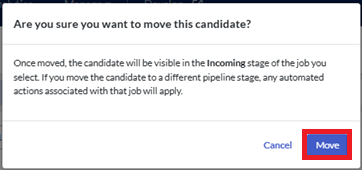
- Click Select a job and choose the job from the dropdown list. Click Move. The candidates will be visible in the Incoming / Stage 1 stage of the job you select.
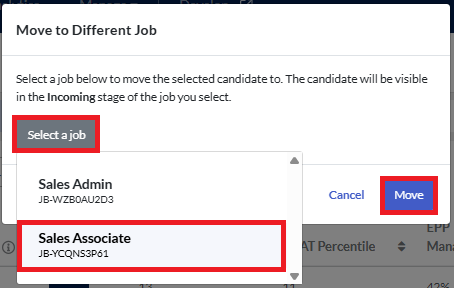
- Click Move in the confirmation message box.
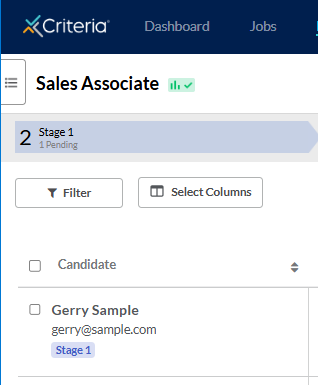
- You will return to the original job, where you can see that the candidate is no longer visible. Go to the new job and view the Results page. The candidate card has been transferred to the new job.
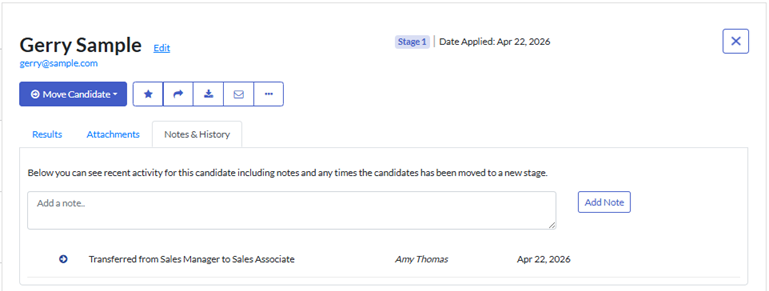
- The Notes & History tab will indicate that the candidate has been moved from Job A to Job B.
- If the candidate completed an assessment in the first job that is not also being used in the second job, you will still be able to view the results for all the assessments that the candidate completed. Example: for Job A, John completed CCAT and EPP. Their details were moved to Job B, which only uses CCAT. John's candidate card in Job B will show the results for both CCAT and EPP.
- The Notes & History tab will indicate that the candidate has been moved from Job A to Job B.
Applied for multiple jobs, completed assessments once
When candidates apply for more than one job with your organization, they may be asked to complete the same assessments multiple times. By having the Reuse Results feature enabled in your Company Preferences, the results for tests your candidates have already completed will automatically be copied across to any new applications they create.
Reusing candidates’ assessment results across applications ensures a consistent basis for comparison, so your team makes hiring decisions using the same standardized data rather than differing data points.
