Create a Job Application
 Updated
by
Amy Thomas
Updated
by
Amy Thomas
Application forms are an essential recruitment tool that allow you to collect specific information from job applicants before inviting them to complete testing or an interview. They help you determine whether candidates possess essential attributes such as licenses, skills, or other information relevant to the position.
A well-designed application form ensures that only qualified applicants progress to the next stage of your recruitment process. While the system includes a basic job application template by default, we recommend creating a custom form tailored to your specific needs.
Important considerations before you start
The following points are important to understand when setting up your application forms:
- The Test Completion Confirmation Emails do not apply to application form submissions; candidates are NOT sent a confirmation email after submitting an application form.
- Each candidate receives a unique Event ID when they begin the application form. Candidates can have their Event ID emailed to them to return to the form later if interrupted.
- If you have set a default expiry date for your job, this will apply to both candidates completing assessments and candidates completing the application form. Candidates will have the set number of days to submit their application form.
Create application form
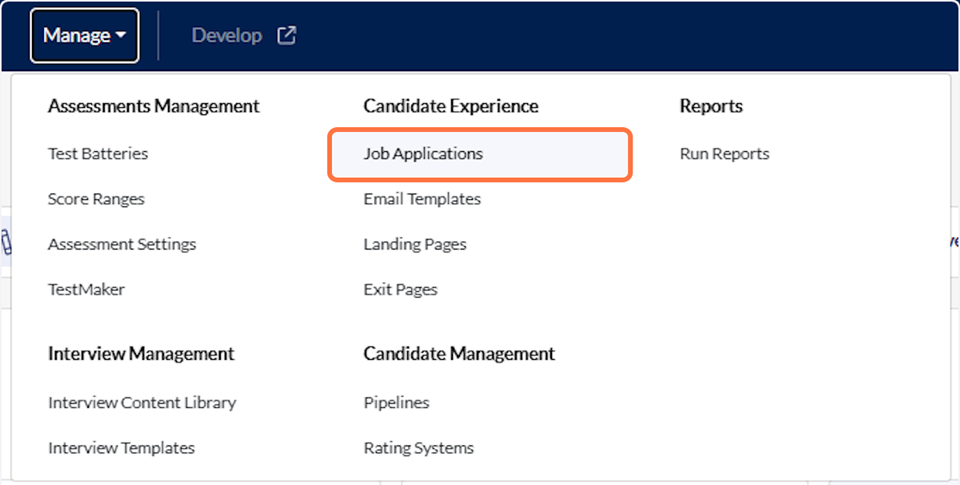
- Click Manage in the top navigation bar, then click Job Applications.
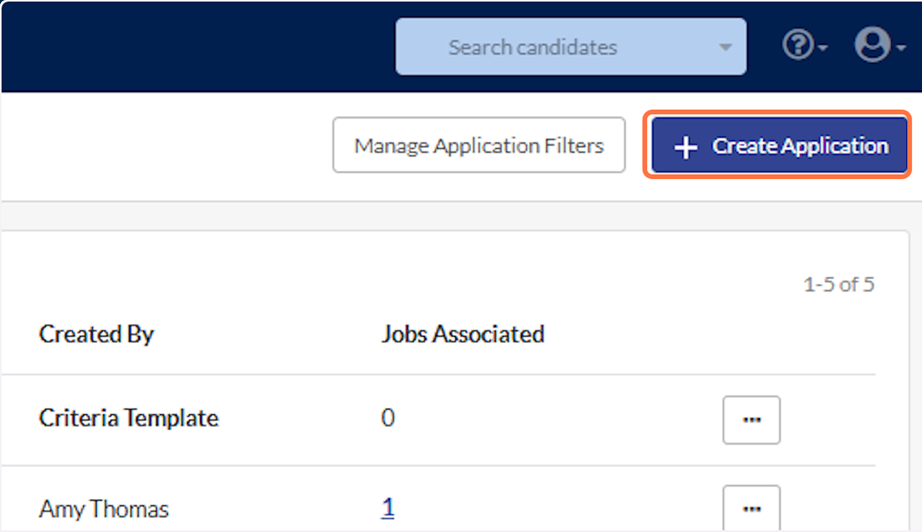
- Click Create Application.
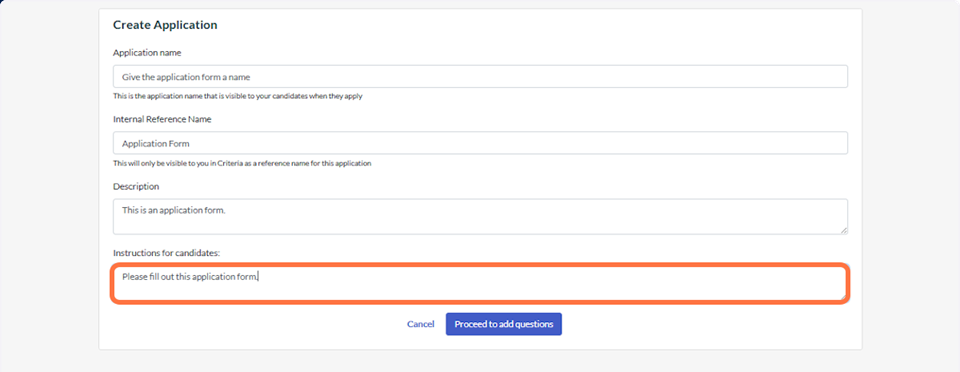
- Enter an application name (candidates will be able to see this name), a description, and instructions for the candidates. Note that the Instructions for candidates will appear before they begin completing the questions.
- Click Proceed to add questions.

Add questions to application form
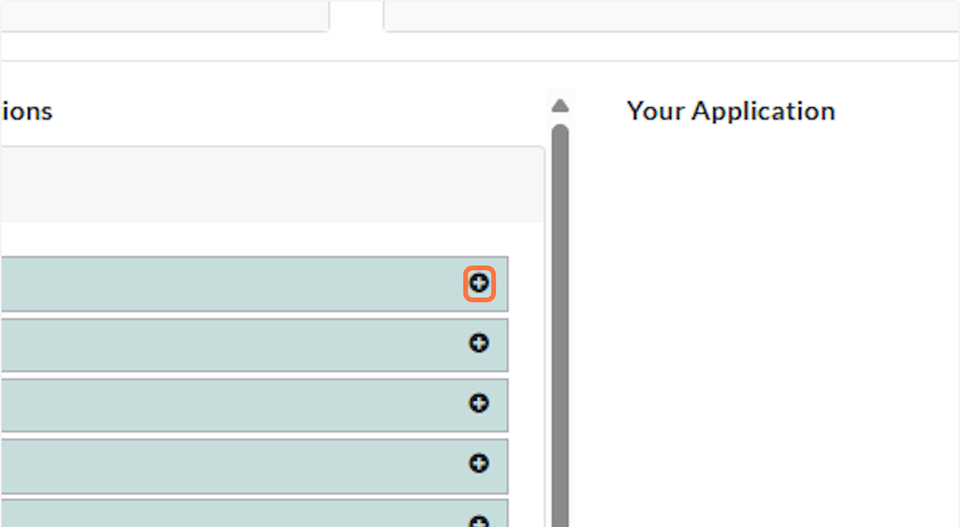
- The left column displays all the headings, instructions fields and questions that are available to be added to the application. Click the plus sign on the right of each of these to add them to your application.
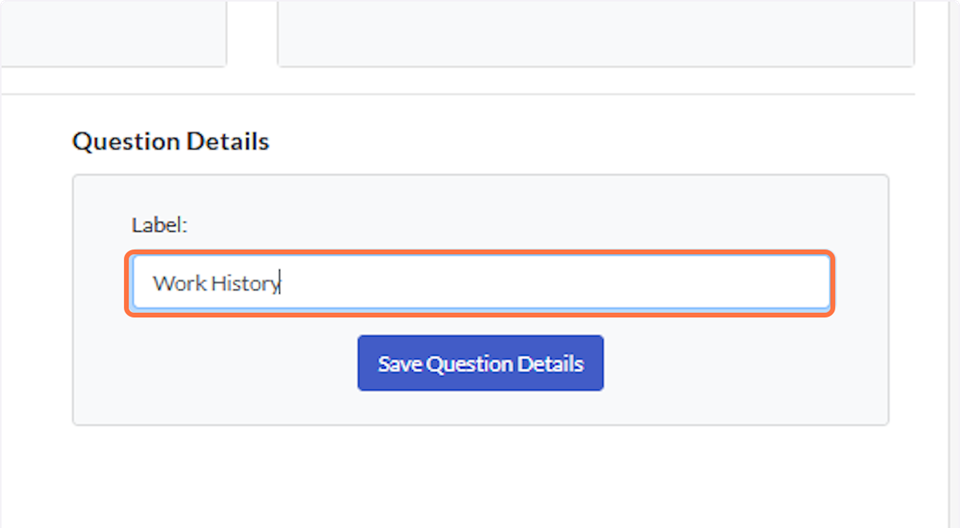
- Headings: Type in a label for the heading. Click Save Question Details.
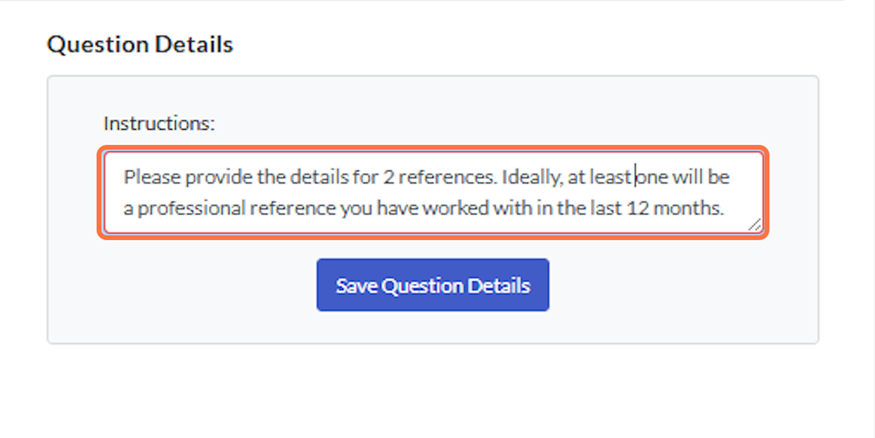
- Instructions: Type in any instructions or information you want candidates to see. Click Save Question Details.
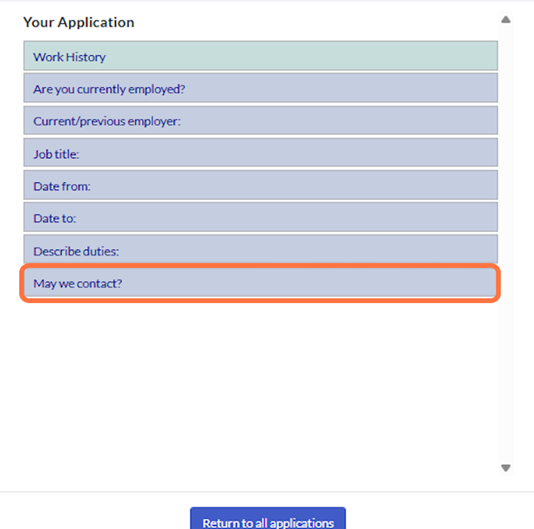
- To rearrange the order of the questions, click on the question. Drag highlighted option to the correct location.
Questions requiring a response
If you must know the answer to a question, in order to progress the candidate's application, you can make a question required. There are two options: either all candidates need to answer the question, or candidates who answered a previous question in a certain way are required to answer this question.
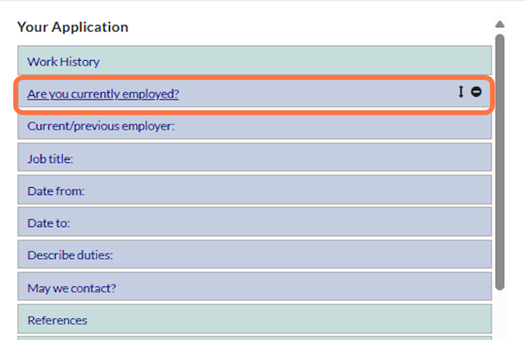
- Click on the question.
- Select Required. Click Save Question Details.
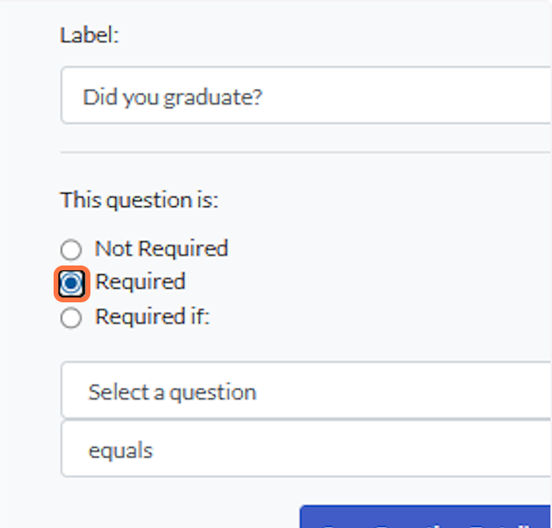

- Select Required if. Select the answer this question relates to. If the candidate selected that answer for the earlier question, this question becomes mandatory. Click Save Question Details.
- Select Required. Click Save Question Details.

Saving and previewing the application form
Changes to your application form are automatically saved.
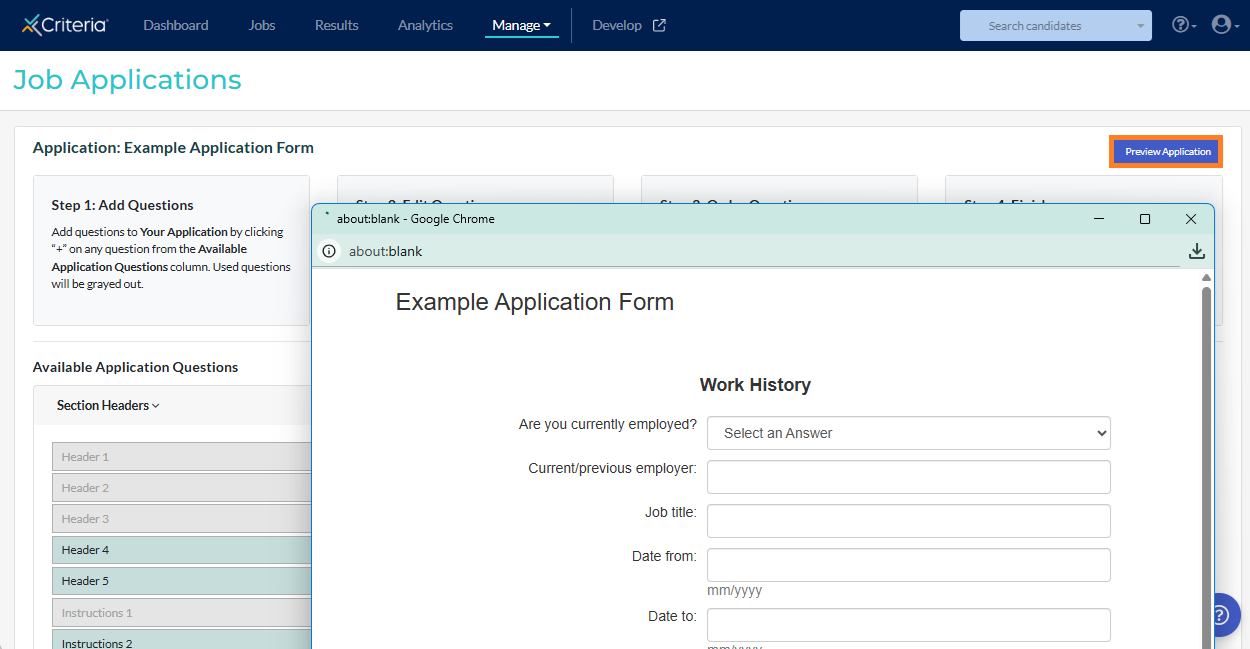
Click Preview Application in the upper right corner to see what your candidates will see. This will open in a new window.
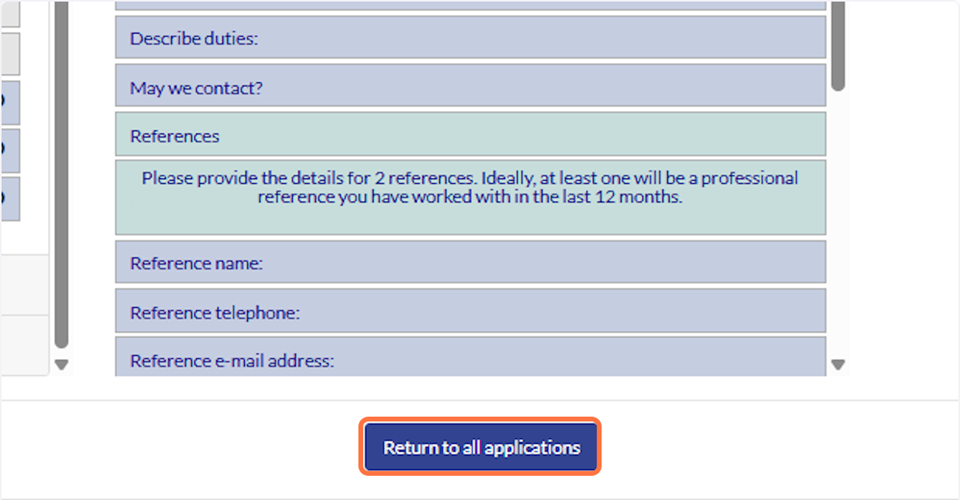
Click Return to all applications once your form is complete.
Best practices
Here are some tips for designing effective application forms:
- Keep your form focused on essential information needed to screen candidates.
- Use clear, straightforward question wording.
- Organize questions logically by topic (contact info, employment history, etc.).
- Use conditional requirements to avoid overwhelming candidates with unnecessary questions.
- Include helpful instructions for complex sections.
- Always preview your form before making it live.
- Consider the candidate experience—lengthy forms may reduce completion rates.
- Do not make changes to the form once candidates have started filling it out. If questions or specific response options are removed from the form, so are the responses of the candidates who completed it.
