Smarter Onboarding with Develop
 Updated
by
Amy Thomas
Updated
by
Amy Thomas
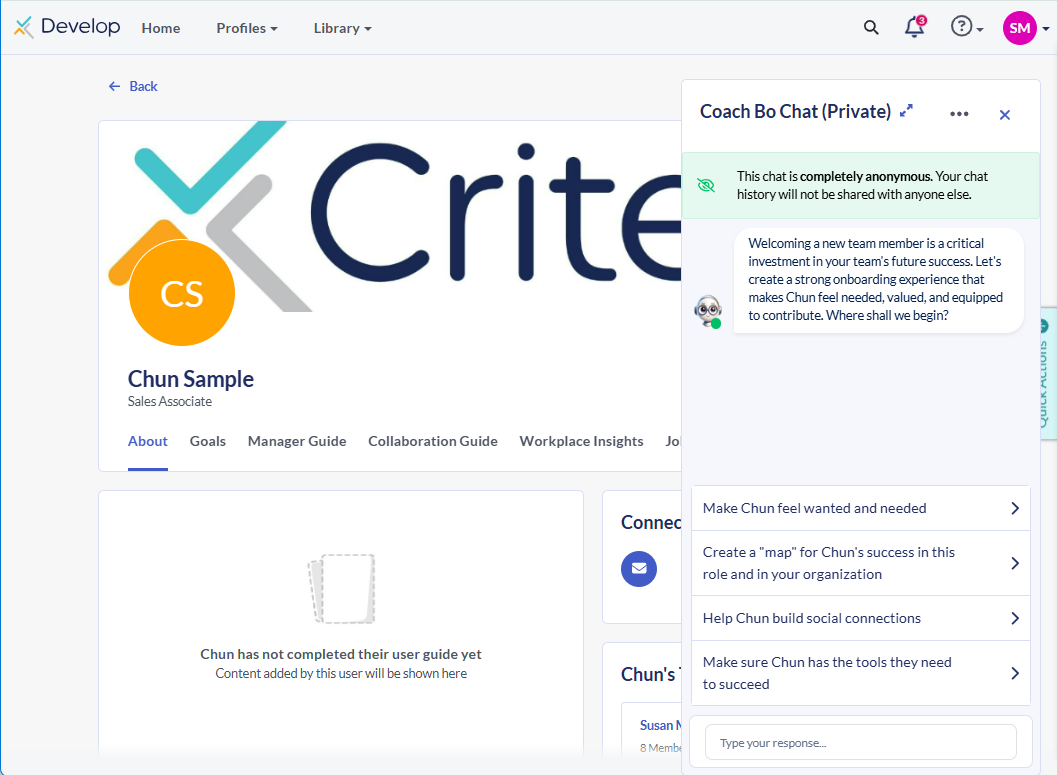
Smarter Onboarding lets you mark a candidate as Hired in your Criteria account, move them into your Develop account, and assign their manager. Their manager can then view key details about their new team member (such as optional resume/cover letter) and use Coach Bo to create an onboarding plan.
Before you start
When you mark someone as hired in your Criteria account, you’ll be prompted for a few details. It’s helpful to have:
- The new hire’s organization email address (e.g., name@yourcompany.com)
- Their start date
- Their manager
- Optional: resume and/or cover letter to share with the manager in Develop
Move a candidate into Develop
- In your Criteria account, locate the successful candidate's record. Open the candidate card.
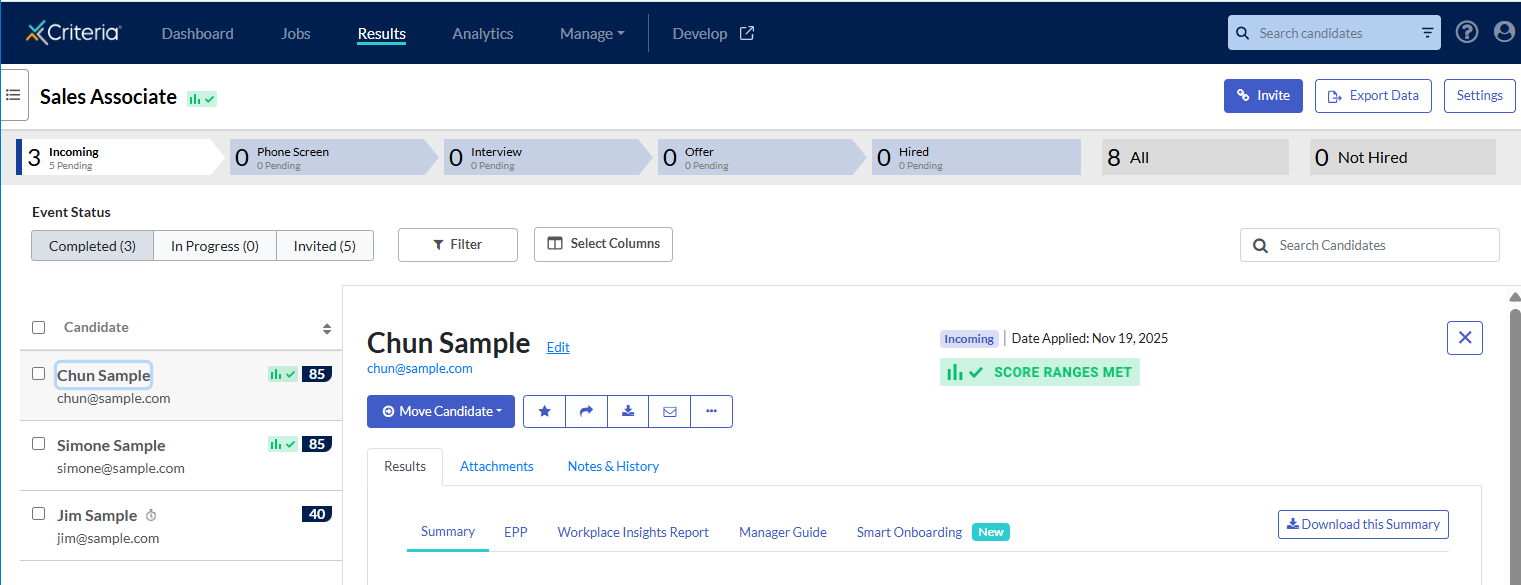
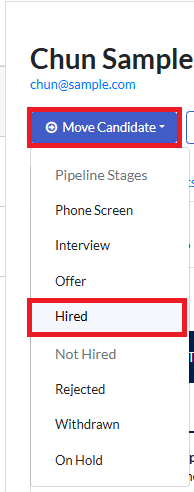
- Move the candidate to the Hired pipeline stage.
- Go to the Smarter Onboarding tab.
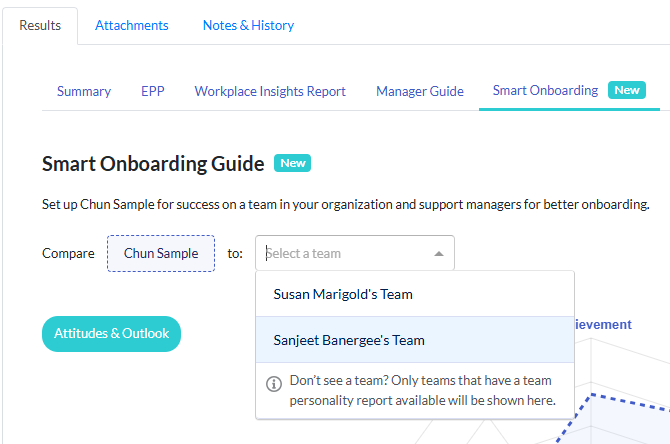
- You can preview the candidate's personality results within the Team Personality Report for the team they will be joining. Click Select a team and choose the team from the dropdown list. Note: only teams that have a Team Personality Report will be visible here.
- You can preview the candidate's personality results within the Team Personality Report for the team they will be joining. Click Select a team and choose the team from the dropdown list. Note: only teams that have a Team Personality Report will be visible here.
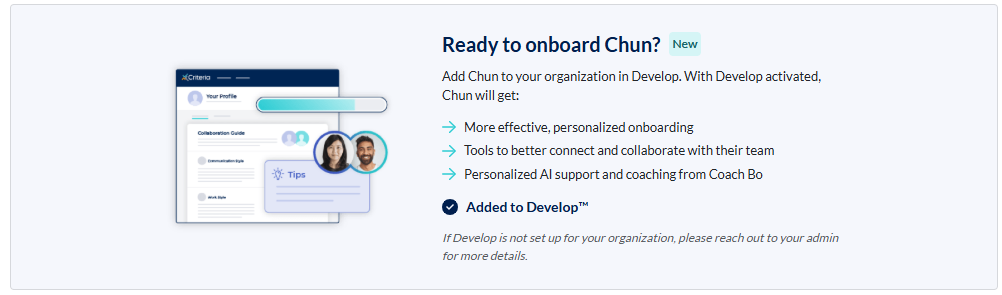
- Scroll to the bottom of the Smarter Onboarding tab. Click Add to Develop.
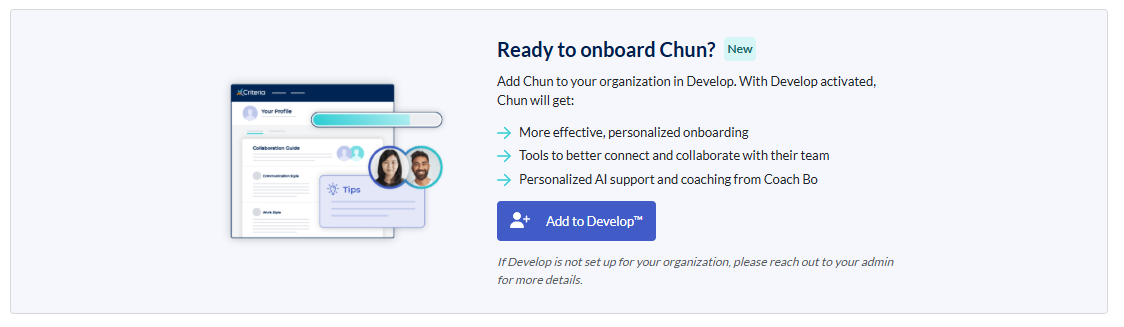
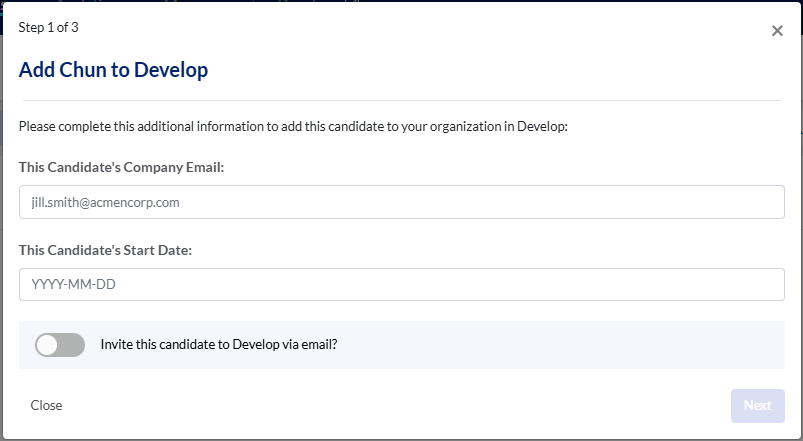
- Enter the new hire's details. Add their organization email address and Start Date. Choose whether to invite them to Develop now or invite later. Click Next.
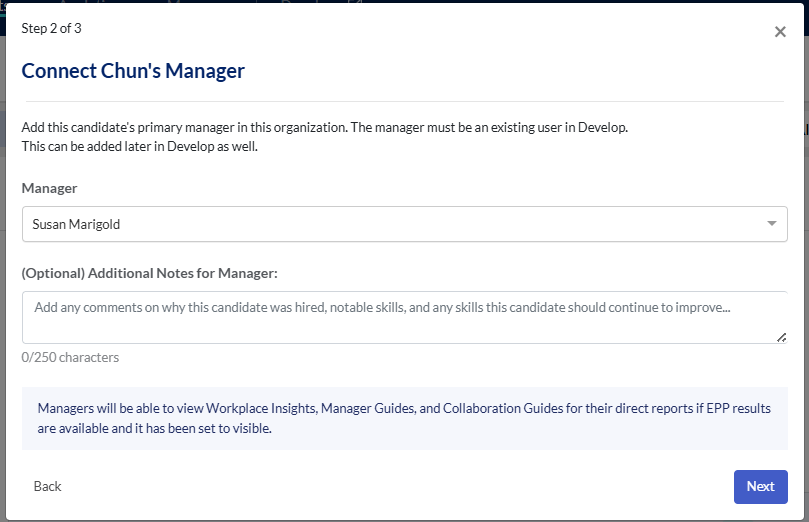
- Assign the manager by selecting their name from the dropdown list. If the list is large, start typing their name in the Manager field to narrow the list down. Optionally, you can add notes for the manager and share their resume / cover letter. Click Next.
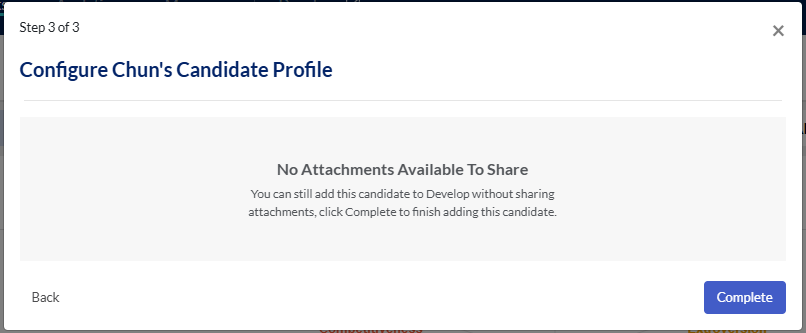
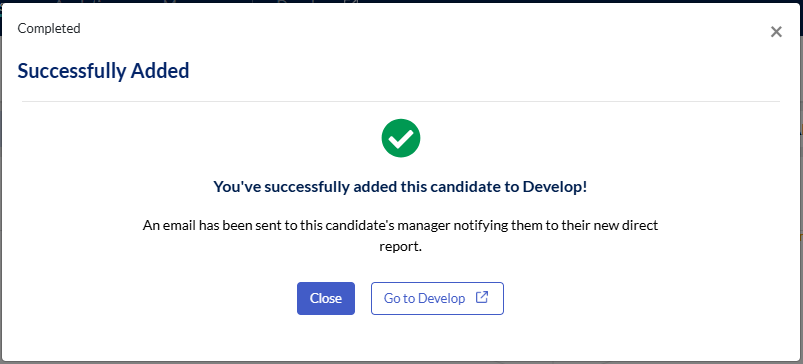
- Click Complete, then click Close to return to your Criteria account or Go to Develop to login to your Develop account.
What the manager sees in Develop
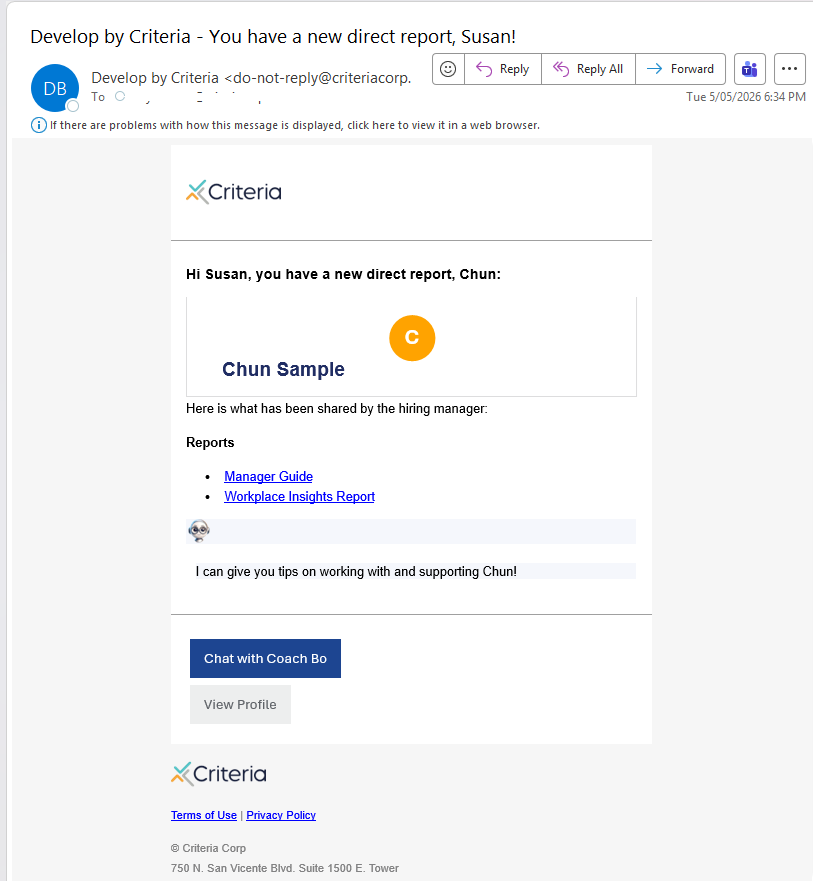
The new hire's manager will receive a New direct report notification email. This includes links to the Manager Guide and Workplace Insights Report.
In Develop, the manager sees an on-screen modal indicating they have a new direct report, along with key info (including your note and any included attachments).
The manager can use Coach Bo for onboarding support. In the new team member's profile, open the Coach Bo onboarding chat to help create a strong onboarding plan for the new hire.