TestMaker Reporting and Analytics
 Updated
by
Amy Thomas
Updated
by
Amy Thomas
Criteria provides a number of reporting options for our assessments, in both spreadsheet and pdf formats. Additional reporting options are available for TestMaker tests.
Download test answers report
If your TestMaker test includes one or more text-based questions, you can make the review process much easier by downloading your candidates' responses in label format. This will enable you to review multiple candidates from one document.
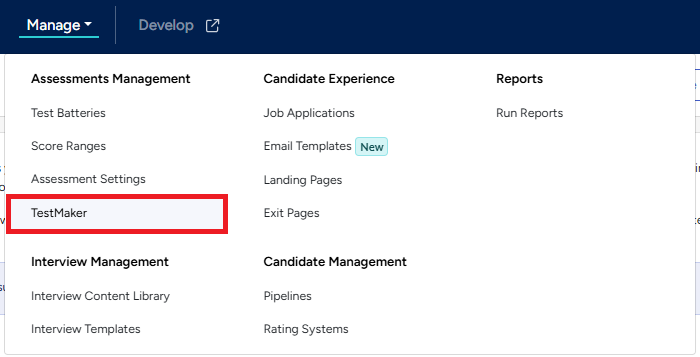
- In your Criteria account, click Manage and select TestMaker from the dropdown menu.
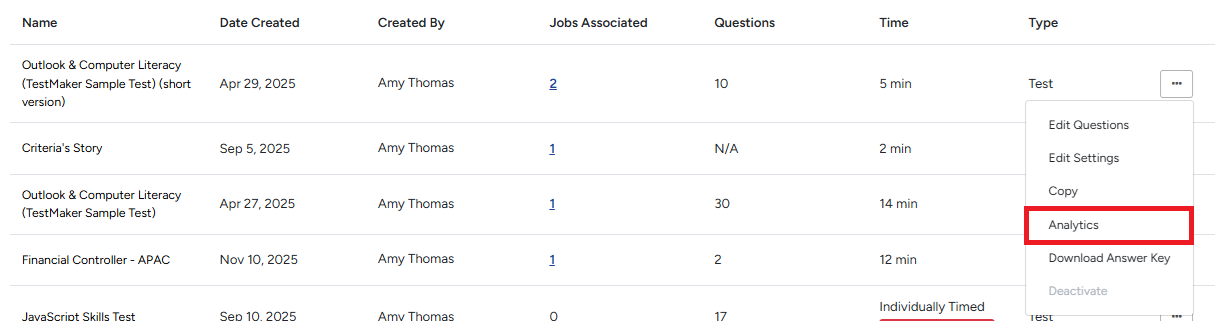
- Click ... to the right of the TestMaker test you are reviewing. Select Analytics from the dropdown list.
- Date Taken: Select the dates you want the data for. The report will include any candidates who completed that TestMaker test within that time frame. Leave these fields empty if you want the data for all time.

- Select the data option you prefer by clicking the button:
- Download Test Answers (Labels): The answers selected by the candidate will be listed in label form (i.e. the text of the answer chosen).

- Download Test Answers (Values): The answers selected by the candidate will be listed in value form (i.e. A, B, C etc).

- Download Test Answers (Labels): The answers selected by the candidate will be listed in label form (i.e. the text of the answer chosen).
- The spreadsheet will be generated and downloaded to your device as soon as it is ready. You can access this in your downloads folder.
View and download analytics
Use this tool to help determine how test takers are performing on your TestMaker questions. For example, if you use TestMaker to test your employees' knowledge, this can help highlight areas that may require additional training.
- In your Criteria account, click Manage and select TestMaker from the dropdown menu.
- Click ... to the right of the TestMaker test you are reviewing. Select Analytics from the dropdown list.
- A table of the questions in the test is generated, which includes the percentage of candidates who answered the question correctly and the distribution of answers.
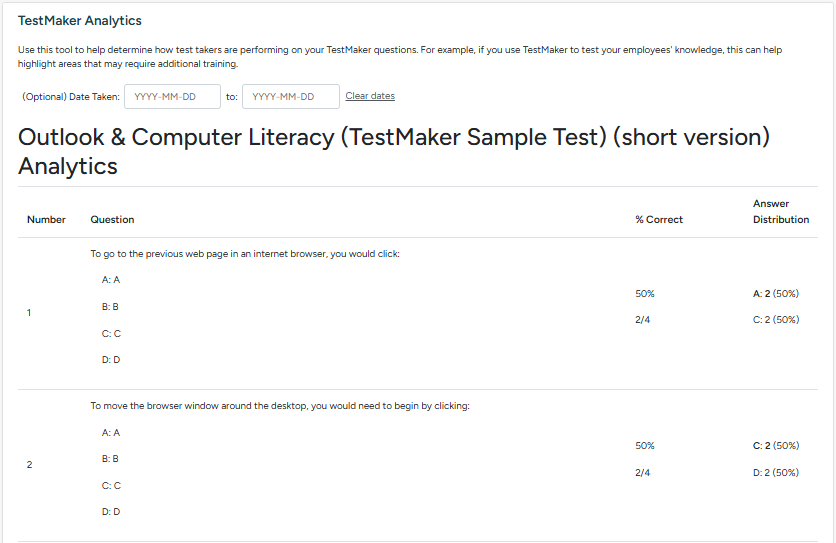
- To export the table into a spreadsheet, click Download TestMaker Analytics at the bottom of the page.

- Click Return to TestMaker to go back to your list of TestMaker tests.
