Supporting Candidates: AI and Device Restrictions
 Updated
by
Amy Thomas
Updated
by
Amy Thomas
Our platform includes built-in assessment protections that detect and block many AI-assisted cheating attempts. These protections work at multiple levels and include detection/blocking of AI-powered tools and browsers when they attempt to connect. These restrictions cannot be removed.
If a candidate attempts to access an assessment using an AI browser or browser with AI-powered tools, they will see a warning message informing them that they will need to either remove the automation tools or AI extensions, or to use a standard browser. (Error message: Task Unavailable. This task cannot be completed in the current browser environment. Please remove any automation tools or AI extensions from your browser or use a standard browser without these features and try again.)
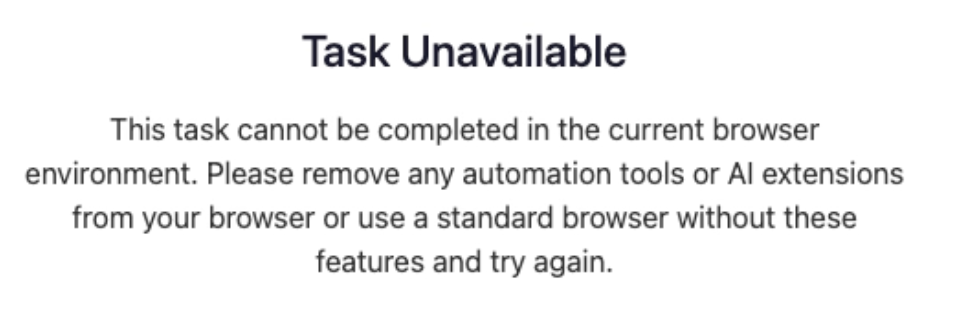
If your candidate queries this message or asks for the restrictions to be lifted for their invitation, we recommend advising them to disable any automation tools or AI extensions (e.g. AI assistants or writing tools). They will need to close and reopen the browser, then try opening the invitation again. If they are not able to disable these, they will need to switch to a browser that does not have AI tools enabled.
Communicating with candidates
Here is an email template you can send to candidates who ask about using a browser with AI-powered tools, or who report getting the "Task Unavailable" error message.
Subject: Assessment Access – AI/Automation Tools Need to Be Disabled
Hi [Candidate first name],
Thanks for your message. Criteria (our assessment provider) has a number of security and integrity settings enabled during assessments to help ensure results reflect each candidate’s own capabilities.
If you’re using a browser with AI-powered tools or automation/assistive extensions enabled, you may see a “Task Unavailable” message. This typically occurs when the system detects a browser automation tool or an AI/assistive extension that could interfere with the assessment environment.
To continue, please:
- Disable any automation tools or AI extensions (e.g., AI assistants or writing tools).
- Close and reopen your browser, then try opening your invitation again.
If you’re not able to disable these tools:
- Try switching to a different browser (for example, Chrome, Edge, Firefox, or Safari).
- Use a different device where these extensions/tools aren’t installed, then try accessing the assessment again.
From our side, we support these integrity features because we want you to be able to demonstrate your own abilities. As such, we do not accept the use of AI to complete the assessments. Where required, we may ask candidates to complete a retest in person.
Best regards,
[Sender signature]
