Zoho Recruit Integration Guide
 Updated
by
Integrations Team
Updated
by
Integrations Team

Setting Up the Integration
The process of installing and configuring the Criteria Extension should be completed by your Zoho Primary Contact. If that person is not able to complete the process, another Zoho Administrator may complete the process, however, the Primary Contact will still need to authorize the extension before the integration can be used.
- Contact your Criteria CSM or our Customer Support team to request an API Key.
- In Zoho, go to Settings > Marketplace, then search for Criteria.
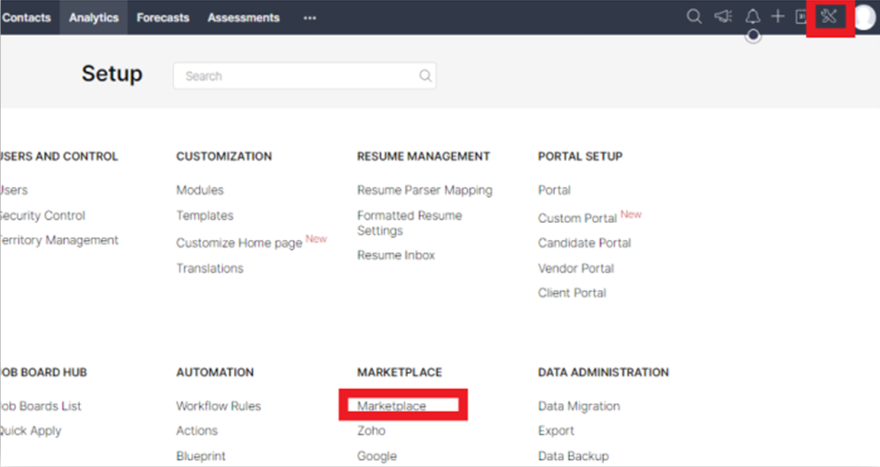

- Click Install.

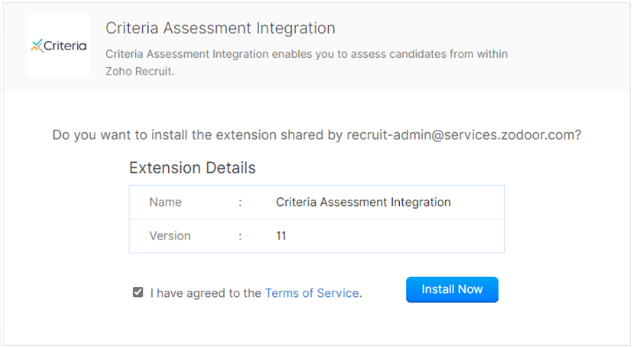
- Agree to the Terms, and click Install Now.
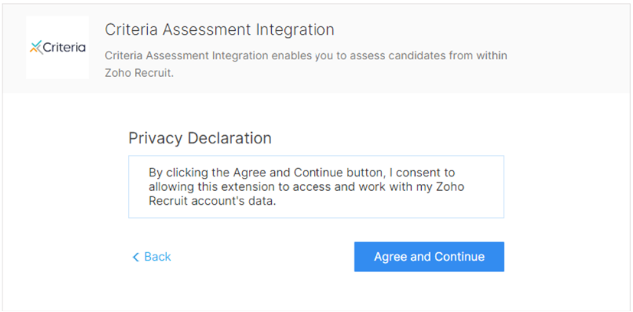
- Click Agree and Continue .
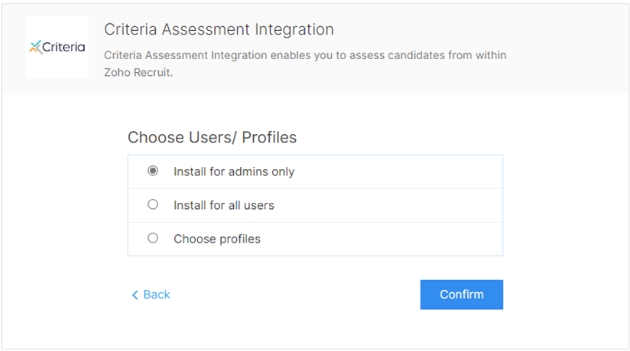
- Select which Zoho users should be able to use the Criteria extension to invite candidates for testing, and click Confirm.
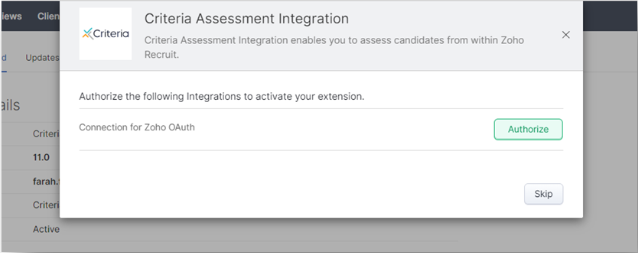
- The extension has now been installed successfully; it needs to be configured before it can be used. Click Authorize.
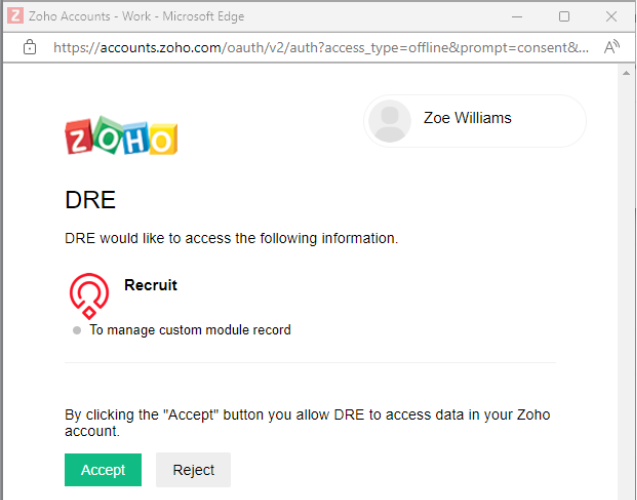
- Click Accept.
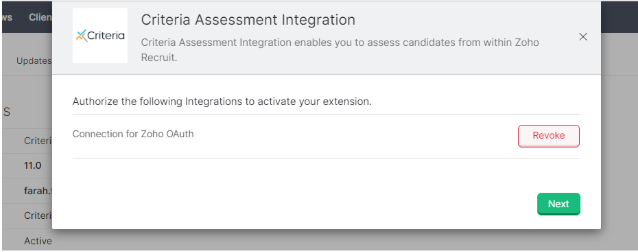
- Click Next.
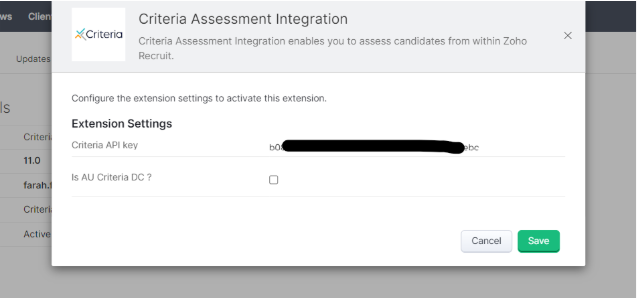
- Paste in the API Key provided by your Criteria CSM. If your Criteria account is located in Australia, tick the Is AU Criteria DC? box, otherwise, leave this box un-ticked. Click Save.
- You will then see the screen below to confirm that your integration is now active and ready to use!
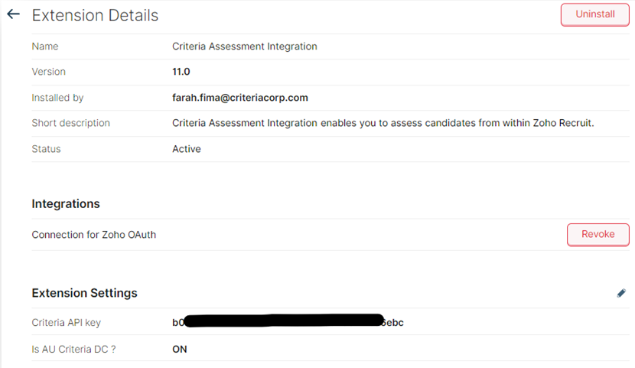
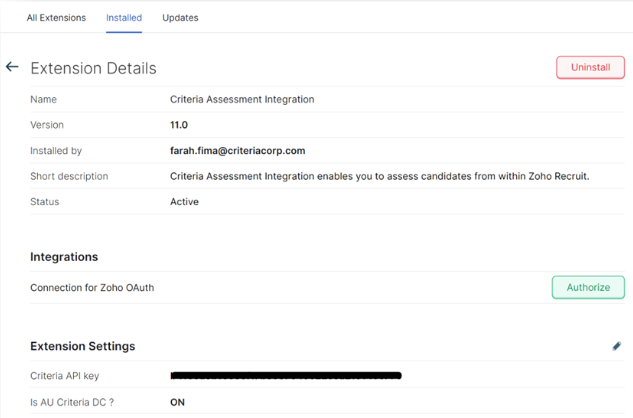
IMPORTANT: If this process was completed by someone other than the specific user flagged as the Primary Contact on your Zoho account the integration will not be fully enabled yet (even though it may appear so to your user).
Your Zoho Primary Contact will need to go to the Extension page and click the Authorize button to enable the Connection for Zoho OAuth which will enable it for the whole integration. Candidate results will not be able to flow from Criteria to Zoho until this is done.
You can identify the Primary Contact user in your Zoho account by going to the Users menu in the Settings area. The Primary Contact is the user with the star icon on their picture.
Sending Assessments to a Candidate/Reviewing Scores
- Select the Candidates menu and click on a candidate’s name or click on a candidate’s name while within a Job.
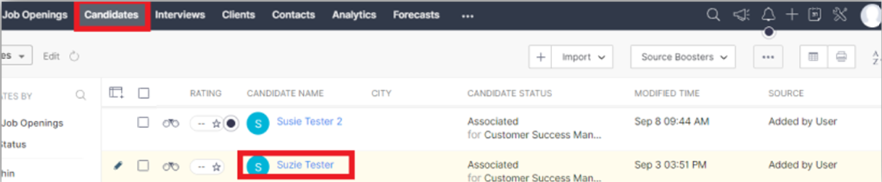
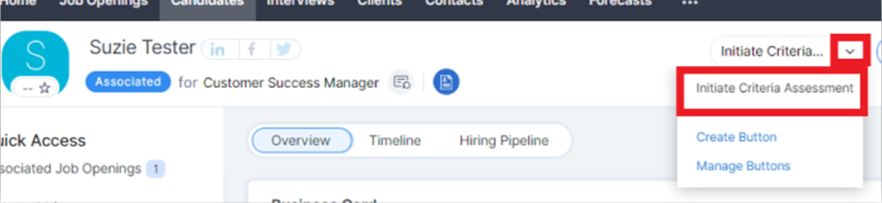
- Click the Initiate Criteria dropdown and select Initiate Criteria Assessment.
- Select the appropriate job to send the candidate, then click Initiate Assessment.
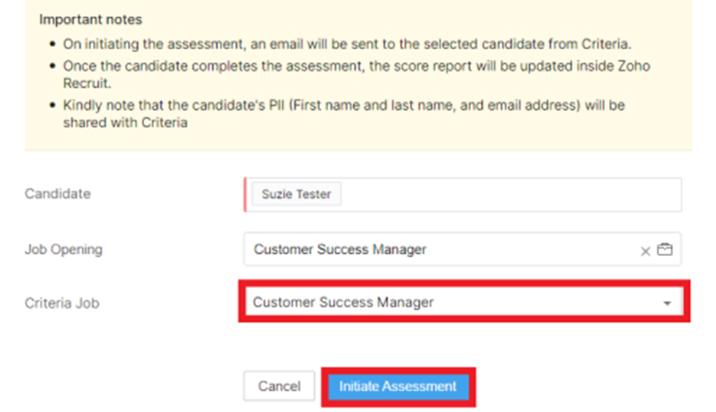
- This confirmation will display, and the assessments will be sent immediately.

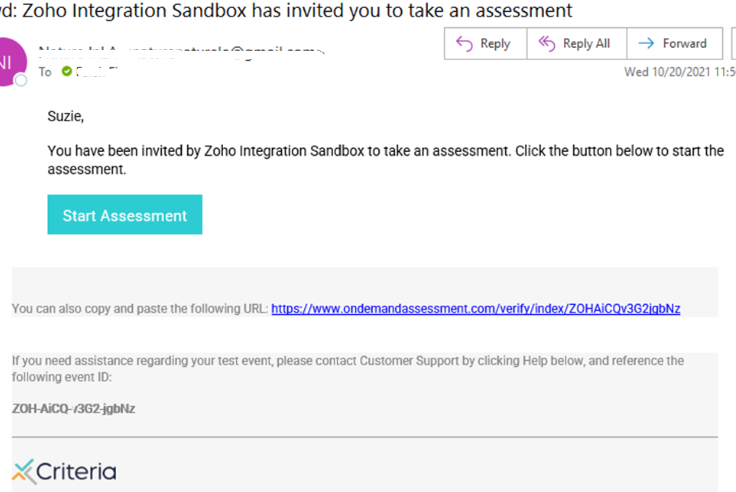
- The candidate will receive the testing invitation via email from Criteria. Note: A custom email template can also be created via your Criteria account if desired.
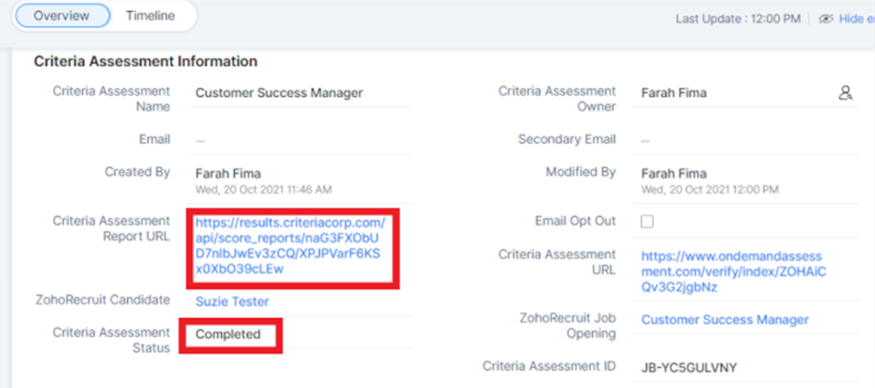
- To see the status of the assessment, scroll to the Related Criteria Assessments section of the candidate record and look at the Criteria Assessment Status column to see if the assessment is Invited or Completed. Once the testing is completed, click the Criteria Assessment Report URL value to see the Criteria report.

- If you cannot see these columns, use the Add Columns button at the top right of the table to configure the columns you wish to see here.
- You may also click on the name of the assessment.

- The status of Invited or Completed will be displayed initially.
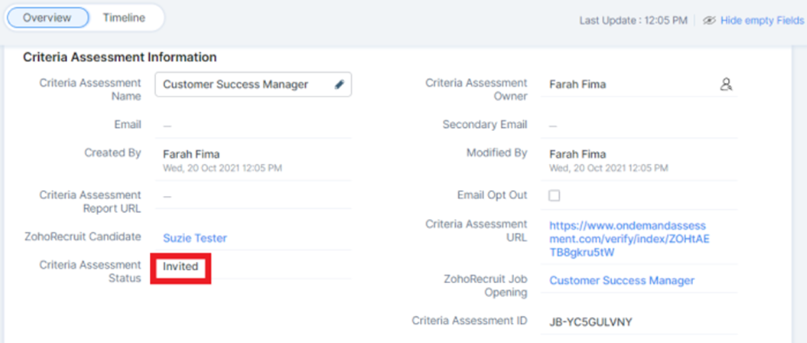
- Once the assessments are completed the status will reflect Completed and a link to the PDF score reports will be immediately available. Also, if your email notifications are turned on for that job in Criteria you will receive an email from Criteria with the score reports attached.